
Make a build
Make a build of your tutorial progress and share it with a friend or community.
_luxe.deploy/ folderWhen you deploy a build with luxe, currently it places the builds into a folder called _luxe.deploy/ inside the project.
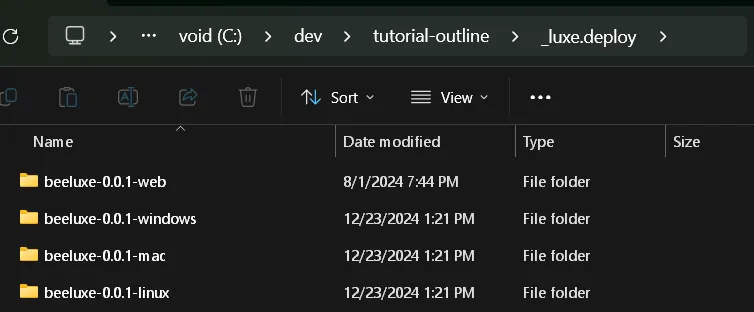
The contents of the folder is a versioned build separated by build target/platform. This makes it easy to zip a folder (e.g beeluxe-0.0.1-windows -> beeluxe-0.0.1-windows.zip) and upload the file directly or share with a friend.
You’ll notice that we have multiple platforms here - You can build for other platforms from the one you are on, as long as you’re on the main path.
A common place to share your games with others is https://itch.io - which is free and allows making your game available for others to play.
Their system deals with cross platform details mentioned above, so if you made a zip of each of these folders and uploaded it to itch.io following their documentation and guidelines, you’re good to go. You can also join game jams or host one and a lot more.
Note that the builds use the project version number in the folder - but will overwrrite the existing build if you build multiple times with the same version number.
If you visit the Terminal menu on the main menu bar, you’ll find a Run Task... menu option:
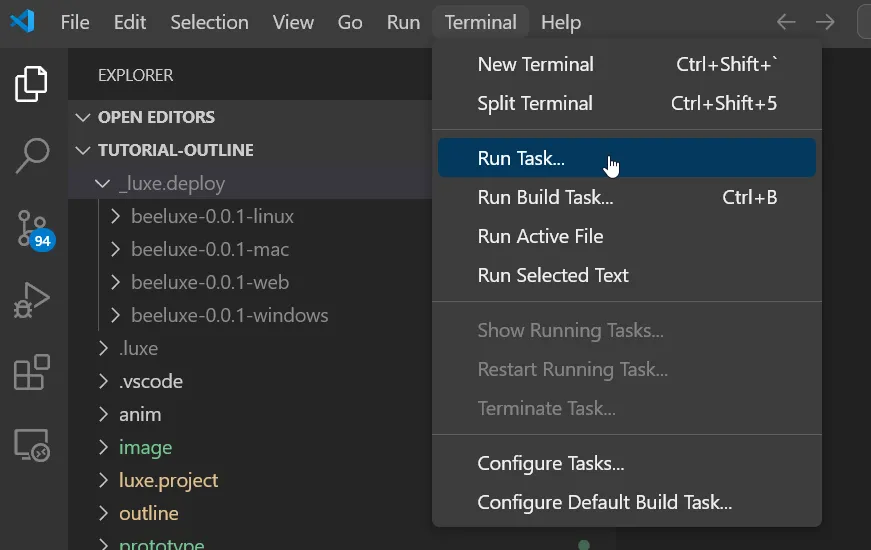
Inside it, there’s a category for luxe, as well as previously used ones if any (usually none at first).
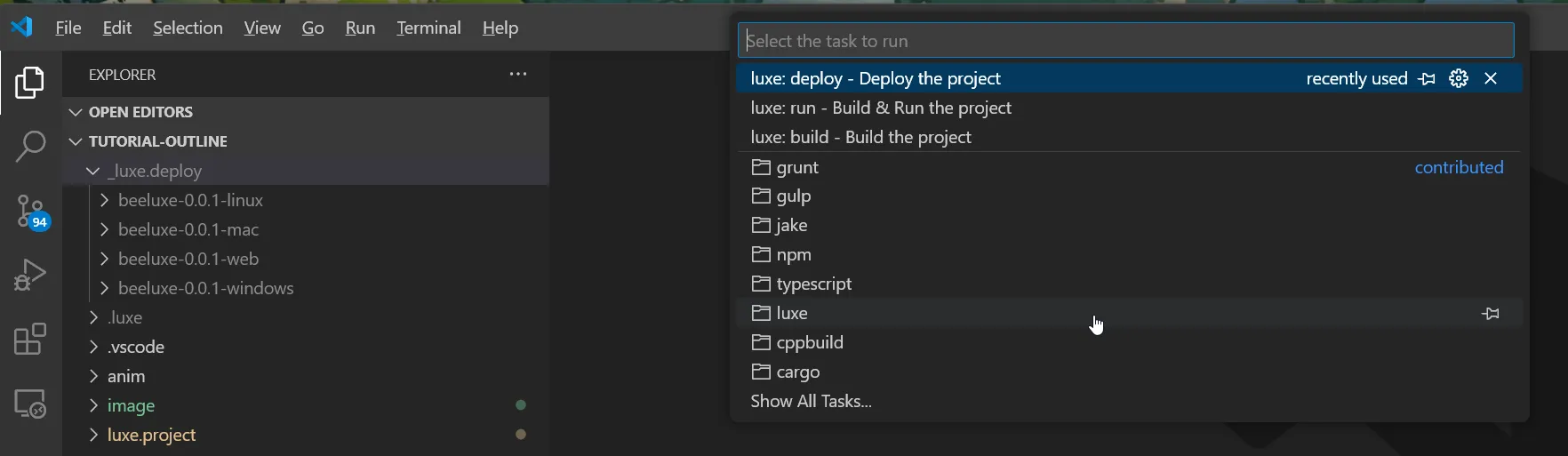
And inside the luxe folder, we have some options, one of which is luxe: deploy - Deploy the project.
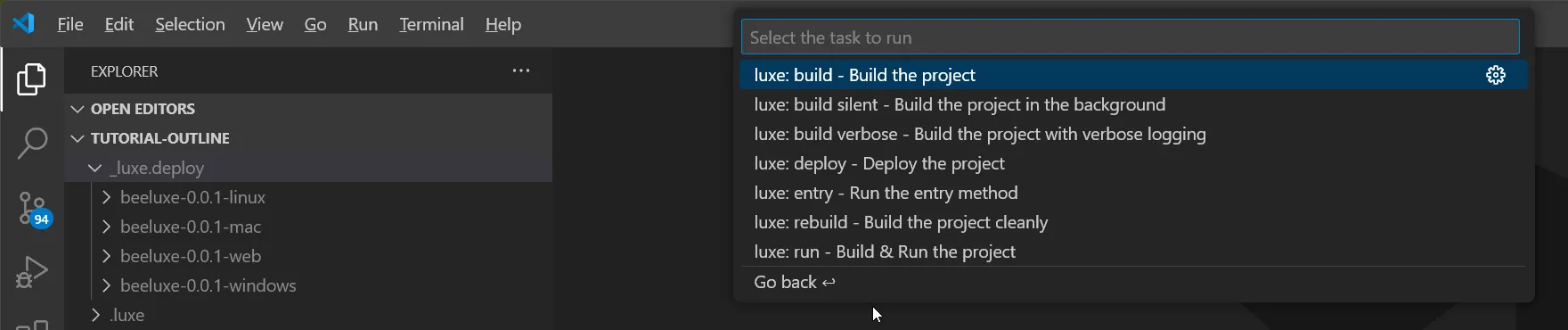
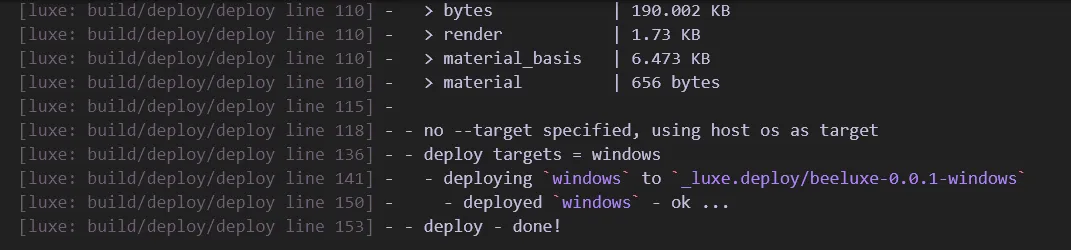
Selecting this option will drop the latest build for the platform you’re using into the folder and print some info:
Inside the editor in the project context (the default one you start on), there’s a section for deploying a build for various targets.
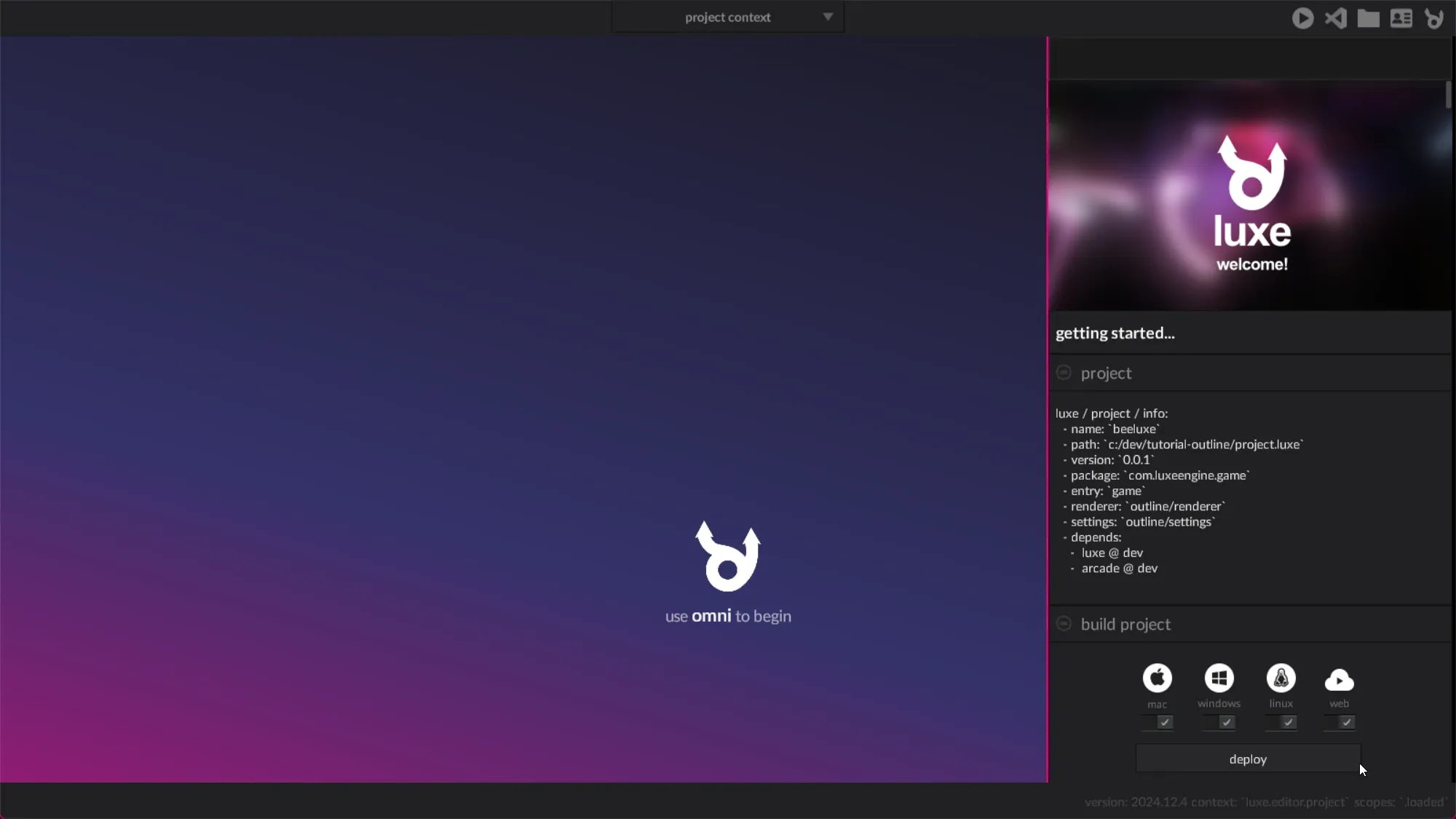
If you hit deploy, give it a few seconds to finish up and it should open the folder containing the builds.
You can also deploy from the terminal or command line. The syntax is luxe deploy with --target <platform>.
By default, luxe creates a shortcut to the latest luxe binary inside your user folder, such as:
~/.luxe/bin/luxeC:\Users\USER\.luxe\bin\luxeWe can use this to always find a luxe binary typically. We can specify more than one target as well, by specifying --target multiple times.
You can enter something like this into your terminal of choice, and hit enter to deploy the build.
c:\Users\ruby\.luxe\bin\luxe deploy --target mac --target windows --target linuxOr on mac/linux:
~/.luxe/bin/luxe deploy --target mac --target windows --target linux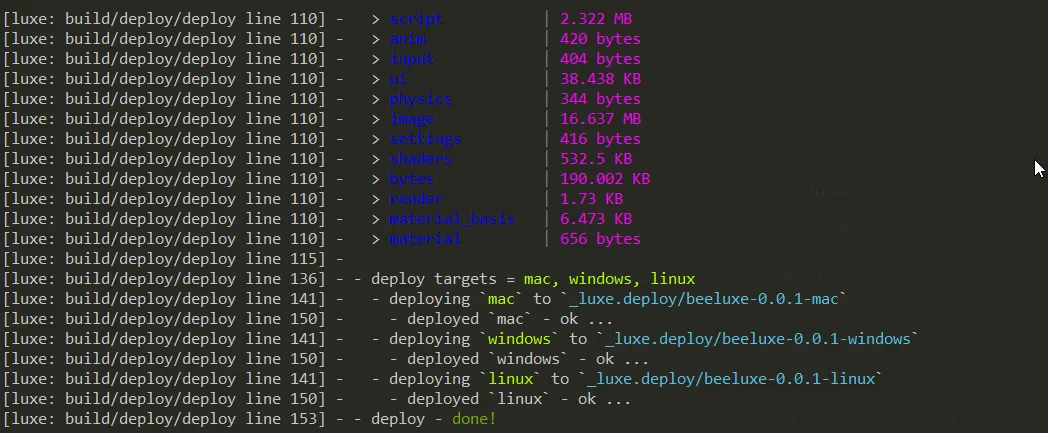
Any flags passed to the deploy action will be available inside your project.luxe file, allowing you to do different things for different builds.
For example we use a --steam flag to signal that we want to copy additional binaries and bump the version explicitly when deploying for Steam.
See this dev log for now but here is an example of accessing the flags:
postdeploy() {
  import "luxe: io" for IO  var flags: Flags = IO.flags()  var do_copy = flags.has("copy")
  if(do_copy) {    //do something  }
} //postdeployIf you deploy a web build, the folder it creates must be served from a web server. If you host the files somewhere (like itch.io) you can share a link and people can play the game in their browser.
You can also test locally using any local server.
For example python has a way to test the game locally.
From inside the deployed web build, you can use
python -m http.serverThis will serve the game on your computer, allowing you to open it in a browser by following the instructions.
Make a build
Make a build of your tutorial progress and share it with a friend or community.