
Add score
Add a score variable to the game class, add 1 to it each time a flower is collected.
We’ll make a game where you play as a bee, and have to bounce on flowers!
For this tutorial, create a new project using the launcher, and when choosing an outline, select the tutorial project outline. This project is pre-configured so we can dive right in.
In order to run our project, we first need to install a module. If you don’t, you’ll get errors!
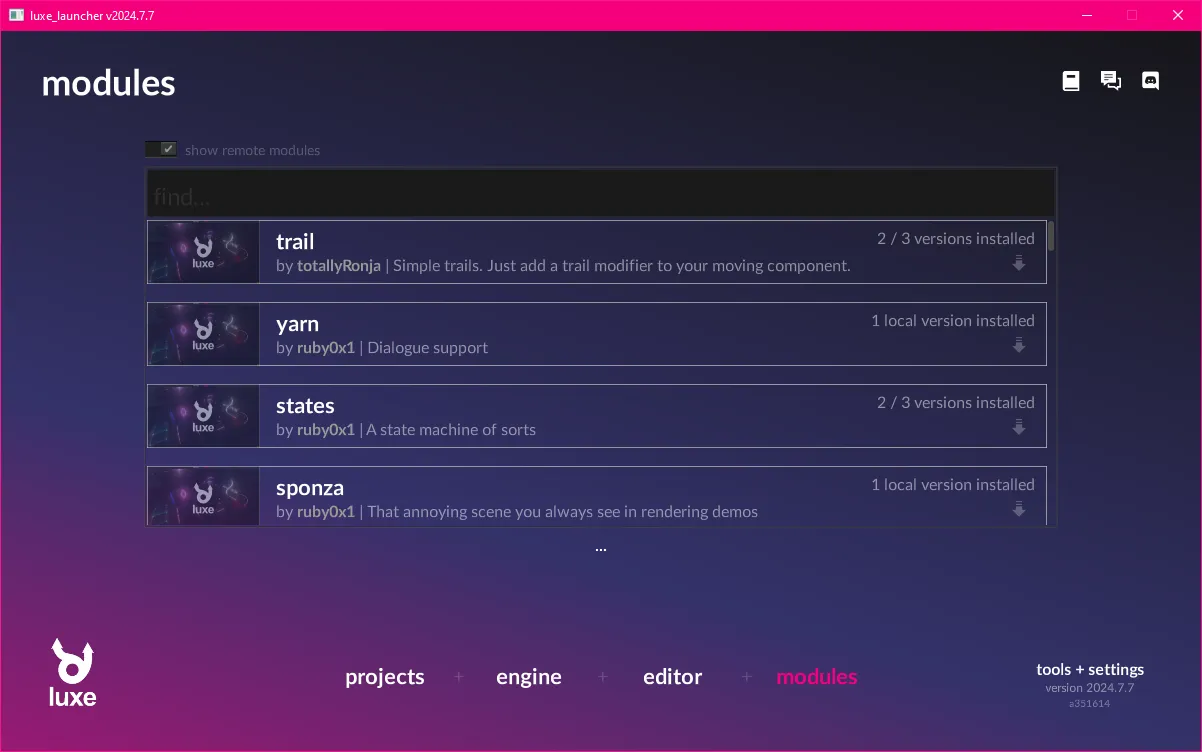
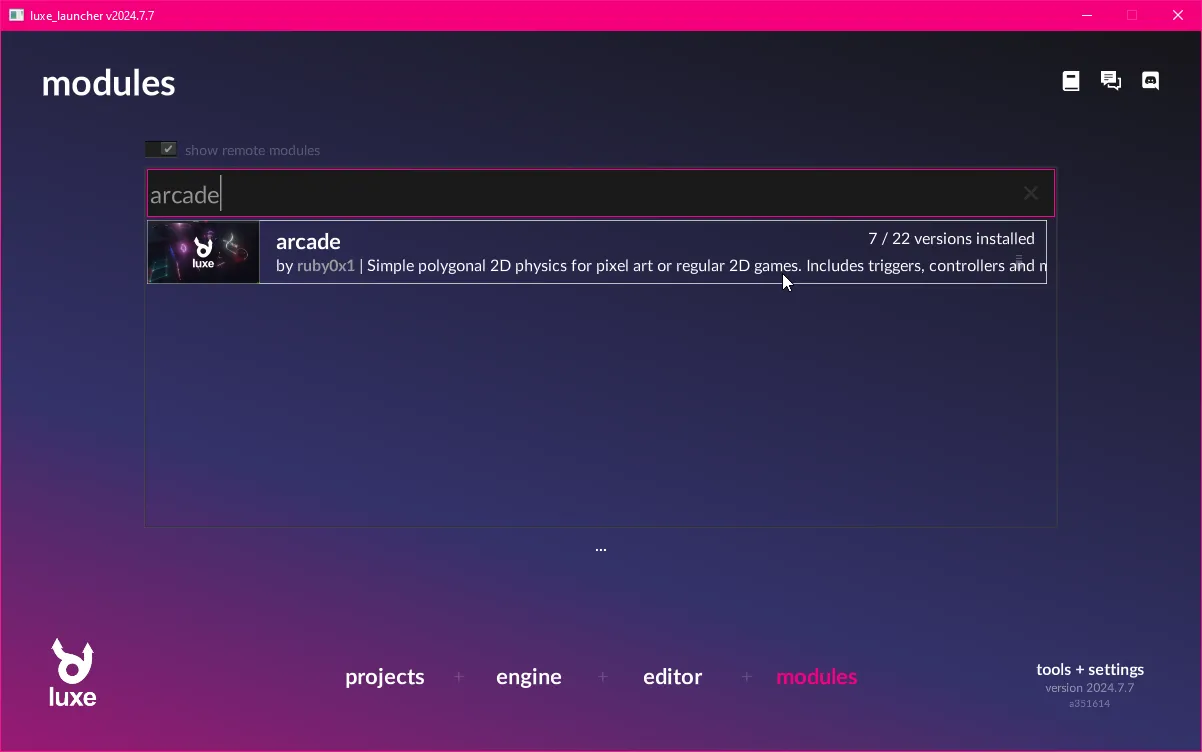
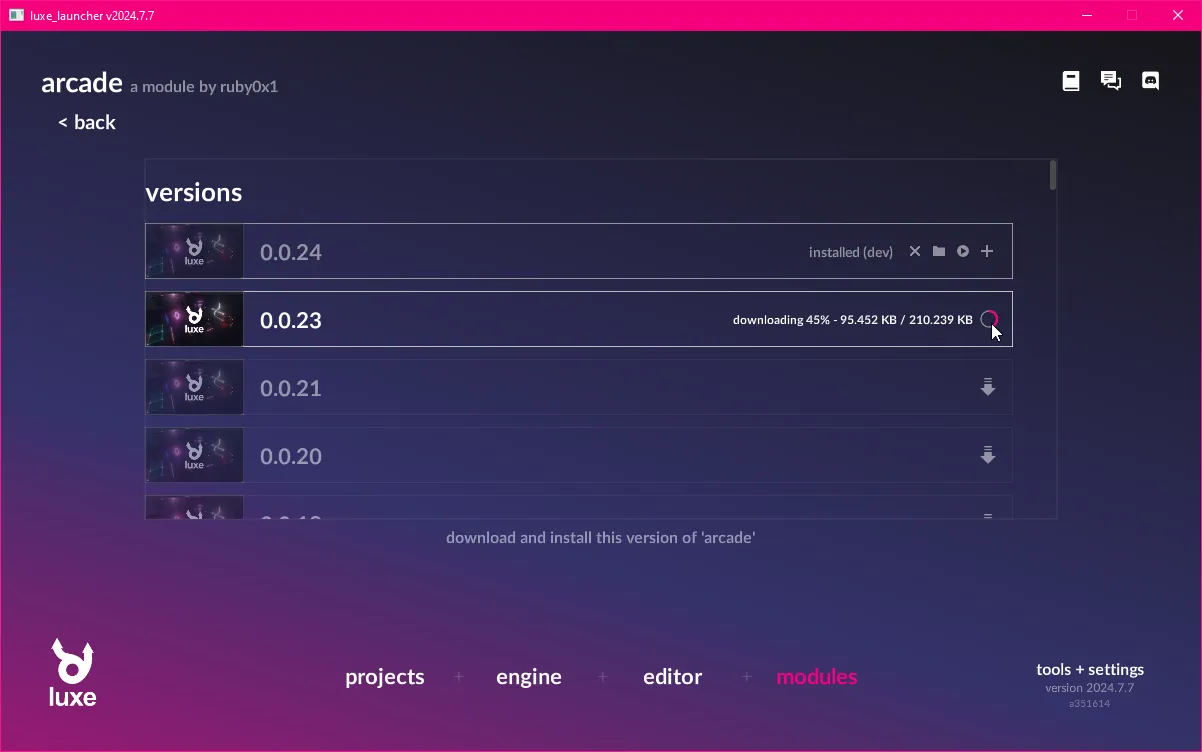
You can use the launcher to install modules. Head over to the module page, and search for the arcade module. Once you find it, you can click through, and click the download arrow.
The project is configured to use version 0.0.24, install that version.
If you look inside of the luxe.project/modules.lx file you’ll find the luxe and arcade modules referenced by version.
You can use the launcher to add a module to the project using the + icon, or you can manually add it to this file.
In this case, it’s already there from the outline, so let’s move on!
Transform APIIn the Draw tutorial, we drew a circle in the center of the screen using an immediate style API.
With the world system, we can create things in the world that will continue to draw as long as they’re alive. An Entity in the world can also have modifiers attached that perform logic, and run gameplay code.
To create an entity, we do Entity.create(world) - this gives us a blank entity, and is ready to be modified to give it meaning.
The first thing we’ll do, is attach a Transform modifier. Modifiers use the same create pattern,
and some modifiers add create functions with convenience arguments, like we’ll see below from Sprite.create.
Let’s create a new player variable in our game, and then inside ready we’ll create an entity, attach a transform and a sprite to it.
class Game is Ready {
  var random = Random.new()  var draw: Draw = null
  var player = Entity.none
  construct ready() {
    super("ready! %(width) x %(height) @ %(scale)x")
    draw = Draw.create(World.render_set(world))
    player = Entity.create(world, "player")    Transform.create(player, world_width/2, world_height/2)    Sprite.create(player, Assets.image("image/bee"), 64, 64)
  } //ready
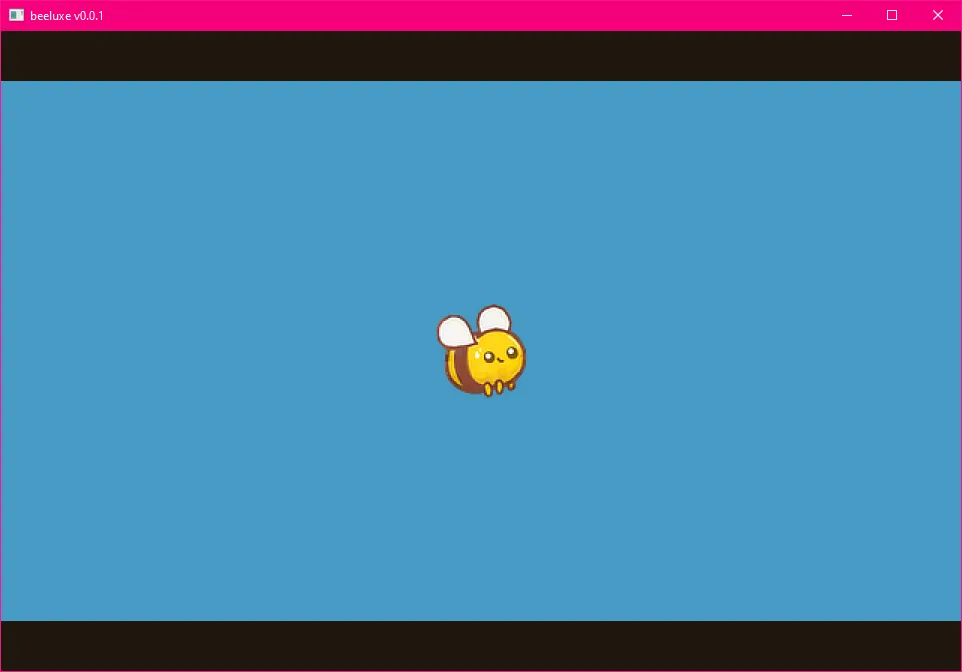
And just like that, we have our player in the middle of the screen.
The arcade module provides collision + physics for a wide range of games, and comes with a bunch of ready to use tools.
The first important one is the Arcade modifier, which gives an entity a collider shape, and allows you to choose flags like whether it’s solid or a trigger, what shape it is, change the velocity and more. It also gives us a callback for when we collide with something, so we can implement a response to overlapping or colliding with something.
We’re gonna use the Arcade modifier and some services from the arcade module to make our bee interact with the world.
We’ll import that module into the top of our game.wren code like this:
import "arcade: system/arcade.modifier" for Arcade, CollisionEvent, ShapeTypeWe can see the import part contains arcade: up front. This should be familiar, luxe: imports are from the luxe module! Like luxe: color belongs to the luxe module. Imports without a prefix like that, usually belong to the project!
Much like a Transform or Sprite, we can attach Arcade to an entity using the same create pattern.
Let’s tidy up and make a create_player() function, and move our player code into it.
construct ready() {
  super("ready! %(width) x %(height) @ %(scale)x")
  draw = Draw.create(World.render_set(world))
  create_player()
} //ready
create_player() {
  player = Entity.create(world, "player")  Transform.create(player, world_width/2, world_height/2)  Sprite.create(player, Assets.image("image/bee"), 64, 64)
  Arcade.create(player)  Arcade.set_shape_type(player, ShapeType.circle)  Arcade.set_radius(player, 32)
}
If we run this, it will look identical to before! That’s because there’s no gravity or anything on our entity.
So how do we know it’s working? How do we know the radius matches? We can ask Arcade to debug draw the physics state.
...Arcade.set_radius(player, 32)Arcade.set_debug_draw_enabled(world, true)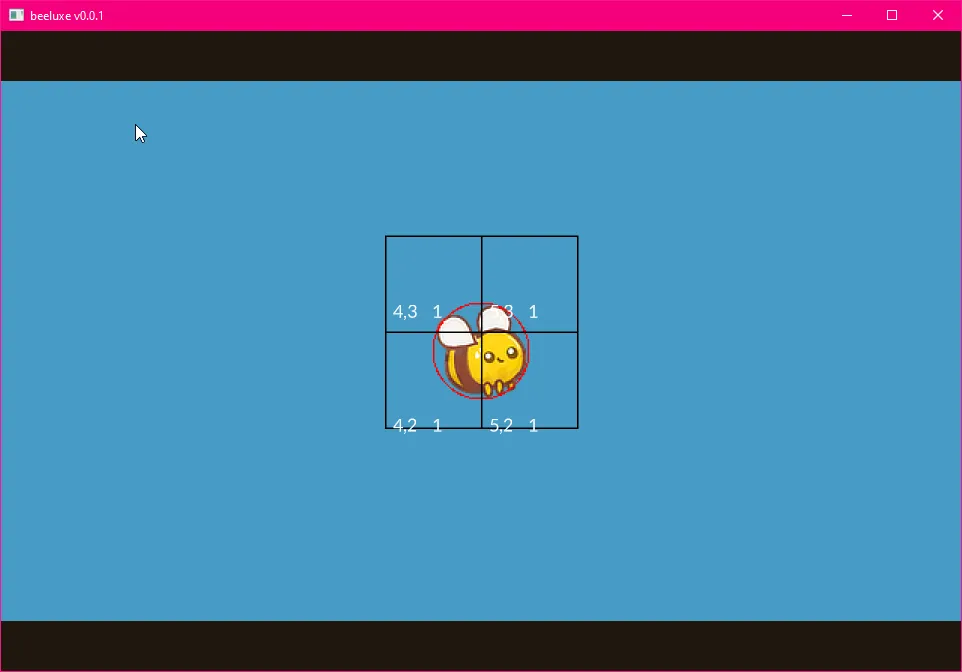
Gravity is a constant acceleration, so we can use the Arcade.set_acc tool to add a downward acceleration.
The value is relative to your world size, and is game specific. For this game, we’ll pick -200 as that feels good.
You can make it whatever you want!
...Arcade.set_radius(player, 32)Arcade.set_acc(player, [0, -200])Arcade.set_debug_draw_enabled(world, true)If you run this now, you should see the bee falling off the bottom of the world!
Our outline includes a scene that has been created for us. This scene includes some background details, and a floor collider which will keep our bee on screen.
A scene is a kind of data based asset, a container for pre-configured entities with their modifiers already attached.
A particular scene can only be loaded once into the same world, but you can load multiple scenes into the same world. This makes them useful as a tool to layer or keep things loaded in the world, and much more. Scenes are typically what you would use for stuff like a Menu, or Level based games.
With Scene.create we can load a scene from an asset. We’ll use the Asset.scene(id) to grab the asset handle of the scene.
Just before we create our player, we’ll load our level scene into the world.
construct ready() {
  super("ready! %(width) x %(height) @ %(scale)x")
  draw = Draw.create(World.render_set(world))
  Scene.create(world, Asset.scene("scene/level"))
  create_player()
} //ready
With that, we’ll see the clouds, some buildings, a gradient and we’ll see the floor collider. The bee will bounce off the floor, and we’re ready for the next step.
In the first tutorial, we used Input.key_state_released to directly query a key.
This is great for quick prototypes but doesn’t allow multiple keys, gamepads, or mouse inputs easily.
For that we’ll need to use named input events. A named input event is what it sounds like, a name assigned to one or more inputs!
We have a few of these already defined by our project, if you look inside of outline/inputs.input.lx you’ll see this:
jump = { keys = ["key_x", "up", "key_w", "space"] mouse = ["left"] gamepad = [0]}If we query this instead of the individual key, any of those inputs will trigger the event. Since these are named events we refer to them by a string value, “jump”, but using strings all over our project can lead to code that can be difficult to change.
Instead, what we’ll do is make an enum-like class that makes our code easier to use, and gives us code completion and errors if we spell it wrong. The pattern is a static function that returns a string, so we’ll make one called In and a function called jump, so we can use In.jump to refer to the event name.
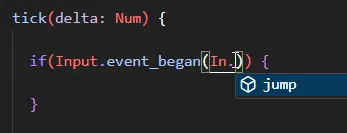
class In {  static jump { "jump" }}
class Game is Ready {...Now inside our game class in game.wren, we’ll add a jump function to make the bee jump.
We call this inside the tick function.
To do that, we’ll get the current bee velocity, add to it, and then re-apply it. We’ll also set the x (horizontal) velocity to 0, because we never want the bee to move horizontally in this game.
jump() {
  var velocity = Arcade.get_vel(player)
  velocity.x = 0  velocity.y = velocity.y + 150
  Arcade.set_vel(player, velocity)
} //jump
tick(delta: Num) {
  if(Input.event_began(In.jump)) {    jump()  }
...
Now when we run the game and press
The bee jump is a little easy to go off screen, so we’ll make a minor change to create_player() to give them a max speed, and we’ll also enforce that the bee is always in the same position on screen, about a quarter of the way in.
create_player() {
  ...
  Arcade.set_acc(player, [0, -200])  Arcade.set_max_speed(player, 150)  Arcade.set_debug_draw_enabled(world, true)
}
Inside tick, we’ll set the player position to world_width / 4 every frame.
tick(delta: Num) {
  Transform.set_pos_x(player, world_width / 4)
  ...
Now when we play, we have a couple jumps before we leave the screen, and our bee is in a nice place for the game.
Prototypes are similar to a Scene, in that they are a bundle entities, already set up with their modifiers, ready to create!
Our project includes a pillar ready to go as prototype/pillar.0 (we’ll make more with the luxe editor in the next tutorial).
We’ll create a create_pillar function, and we’ll call it right after creating the player.
To create a prototype we use Prototype.create and Asset.prototype similarly. This returns a single entity,
which allows us to move or manage the whole bundle of things it created as a single unit.
  ...  create_player()  create_pillar()
} //ready
create_pillar() {
  var pillar = Prototype.create(world, Asset.prototype("prototype/pillar.0"))  Transform.set_scale(pillar, 0.4, 0.4)  Transform.set_pos(pillar, world_width / 2, random.int(15, 170))
} //create_pillar
With that, you should see a pillar spawned in the center of the world.
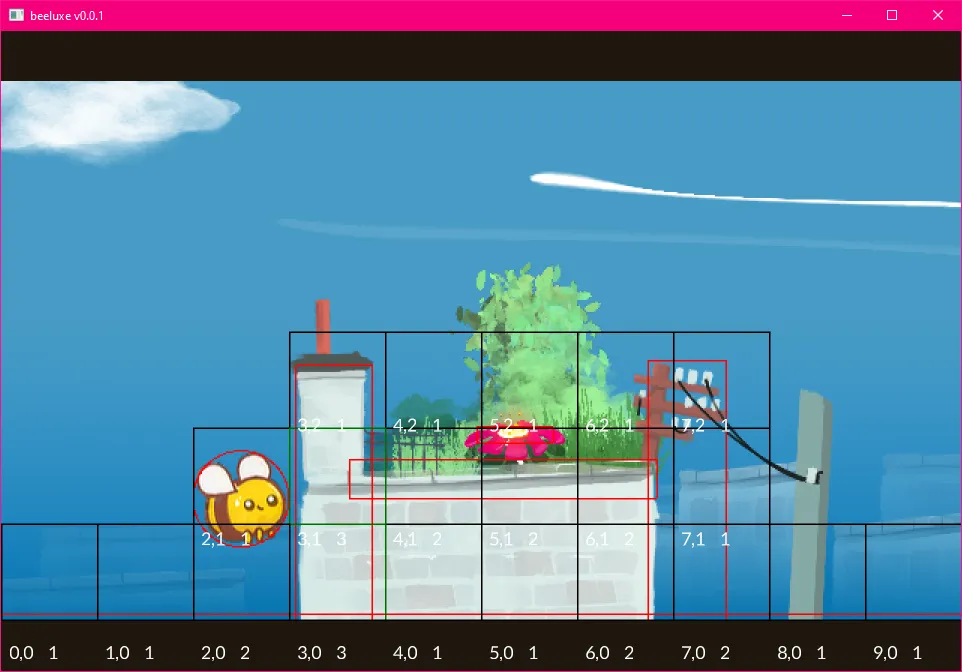
The next step is to move the pillars across the screen, so the player will have to jump over them.
To do that, we want to make a modifier that will move any pillar that it is attached to, and when the pillar moves off the left of the screen, clean itself up.
system/ folder conventionThe convention for modifiers is to be in a folder called system/.
Each modifier is a Wren file with a .modifier.wren extension. The .modifier. part is what luxe calls a ‘subtype’. You’ll see that on most assets!
When we want to make a new modifier, it’s convenient for the engine to fill in the code to get started.
Luxe will do that for us, if we create a blank file named with the .modifier.wren ending it can fill in the blank file for us.
At the moment, it will only fill in that file for us when we build. So run a build from the code editor, and watch that file get filled out.
Look for the API part of our newly generated code. It has some placeholder details we should change.
#api#display = "Empty Modifier"#desc = "**A new modifier**. You should update this description"#icon = "luxe: image/modifier/modifier.svg"class EmptyModifier is API { //add public facing API here}We can update it to look like this:
#api#display = "Pillar"#desc = "**A moving pillar**. Moves the pillar horizontally toward the player, then removes itself when offscreen."#icon = "image/pillar.svg"class Pillar is API {Now that we have a modifier, we can use it similar to a luxe modifier. We first import it, which we can see is now from the project, not from a module.
Now that we have a modifier, we can attach it in the same way that we do for the built in ones.
We’ll also modify our start position for the pillar, by setting it to world_width + 128 instead.
import "system/pillar.modifier" for Pillar...create_pillar() {
  var pillar = Prototype.create(world, Asset.prototype("prototype/pillar.0"))  Transform.set_scale(pillar, 0.4, 0.4)  Transform.set_pos(pillar, world_width + 128, random.int(15, 170))  Pillar.create(pillar)
} //create_pillar
When you run this, you’ll also see the line in the log because of the code in attach:
[system/pillar.modifier line 29] - attached to `prototype/pillar.0` `42951770139`You also won’t see the pillar since we put it off screen! So let’s make it move so we can.
Inside our pillar.modifier.wren there’s a Data class, which was empty at the time.
For our pillar to move, we’ll need a speed value and we can store the speed value in this class.
The data class is per entity data, so if we want to store some value for each entity that our modifier is attached to, this is where we can put it. This means each pillar can choose to move at a different speed, because each entity has it’s own value for speed.
class Data { var speed: Num = 100}Now we can use the tick function of our new modifier, to move our pillar.
Once it goes off screen, we can destroy the pillar so it doesn’t exist when no longer relevant.
Inside the tick function of our modifier, we can use the each helper to do something on each instance of our modifier.
This is a lot like a for loop, except we get to do a chunk of code for every entity. It also hands us the Data for each unique one!
tick(delta: Num) {  each {|entity: Entity, pillar: Data|
    var x_now = Transform.get_pos_x(entity) - pillar.speed * delta    Transform.set_pos_x(entity, x_now)
    if(x_now < -256) {      Frame.end { Entity.destroy(entity) }    }
  } //each} //tick
So: for every pillar in the world, move it to the side, using it’s own speed. If it goes off screen, we can destroy it.
When the pillar goes off screen, we should see this in the log, because of the code inside detach.
[system/pillar.modifier line 34] - detached from `prototype/pillar.0` `42951770139`We probably want more than one pillar to come across the level, so we’ll use a tool called World.schedule(world, time, fn).
This calls a function for us every time seconds, but the important part is that it is affected by the world rate.
  ...  ... //existing code  create_player()
  create_pillar()  World.schedule(world, 6, 9999) {    create_pillar()  }
} //ready
And with that change, we now get a constant stream of pillars to jump over! We have one more important thing to do to finish this tutorial.
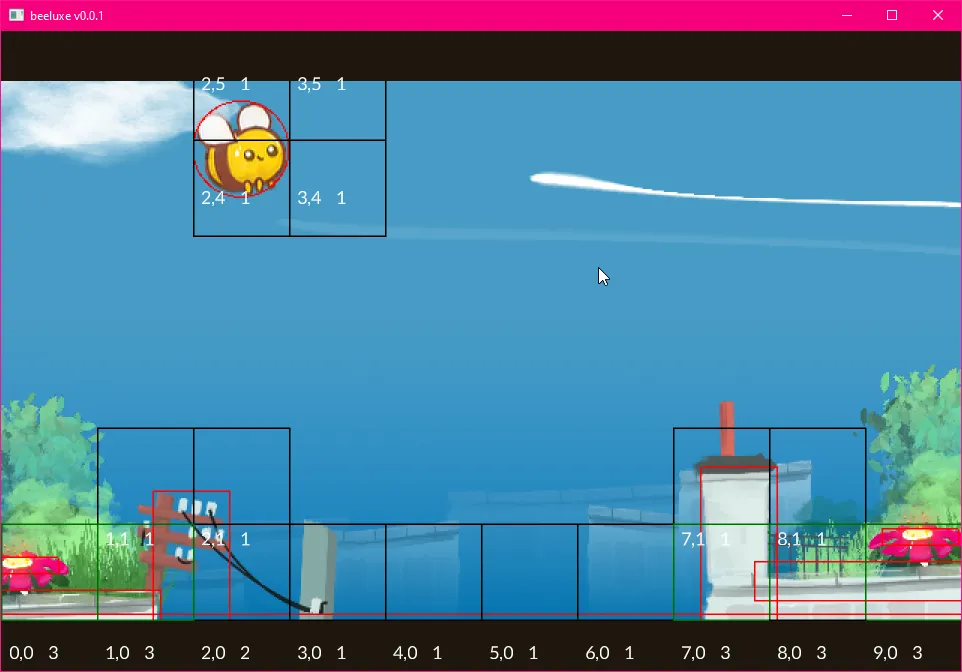
Our last step for this game is handling what happens when you hit something.
If you saw the moving pillar video above, the player goes through the walls and keeps jumping forward because of our code to keep it in the same spot.
Instead what we’ll do is check the direction of the hit, and if you hit a wall (sideways), pause the game world. The direction check is using a math function called the dot product.
  ...
  handle_collision()
} //ready
handle_collision() {
  Arcade.add_collision_callback(player) {|entity_a, entity_b, state, normal, dist|    if(state != CollisionEvent.begin) return
    var dot = Math.dot2D(normal, [0,1,0])
    if(dot.abs < 0.8) {      World.set_rate(world, 0)    }
  } //collision callback
} //handle_collision
You can see here we bounce off the top of things, but when we hit the side wall, we stop.
The collision check is a little abrupt, and isn’t very fun because it’s super precise and you can fail easily.
To make the game a bit more fun, we’ll add some squishy behaviour.
When we hit a collider, we get the height and check the distance. If the distance is less than 32 (half the radius of our bee), we’ve just hit the edge of the collider with the bottom of the bee and we can ignore it.
Another tweak, we’ll play a bounce animation when we hit a flower. This also uses the Tags modifier, which allows us to tag entities with specific tags and check for them. In this case, our flower entity inside the pillar prototype already has a tag.
handle_collision() {
  Arcade.add_collision_callback(player) {|entity_a, entity_b, state, normal, overlap_dist|    if(state != CollisionEvent.begin) return
    var dot = Math.dot2D(normal, [0,1,0])
    var scale = Transform.get_scale_world(entity_b)    var height = Arcade.get_height(entity_b) * scale.y    var top = Transform.get_pos_y_world(entity_b) + (height * 0.5)    var dist = (top - (Transform.get_pos_y_world(player) - 32))
    if(dot.abs < 0.8 && dist > 32) {      World.set_rate(world, 0)    }
    if(Tags.has_tag(entity_b, "flower")) {      Anim.play(entity_b, "anim/bounce")    }
  } //collision callback
} //handle_collisionOne final task is to make it so you can reset the state so you can try again.
We’ll add a reset() function, first we reset the player position, and unpause the world.
This is called from tick using a simple key check.
reset() {  Transform.set_pos(player, world_width/4, world_height/2, 0)  World.set_rate(world, 1)}
tick(delta: Num) {
  if(Input.key_state_released(Key.key_r)) {    reset()  }
  ...
Now, our pillars will still be there, so we’ll need to clear them up too!
We could keep a list of pillars we created, and then clean them up like we did in the draw tutorial…
But the modifer system we created already knows about all of our pillars! It keeps track for us.
Let’s add a public API to our pillar modifier, e.g Pillar.reset(world).
To do this, we’ll add a function to the API class in our modifier. This function has access to a helper function called system_in, which gives us our system to call into.
class Pillar is API {
  static reset(world: World) {    var system: System = system_in(world)    system.reset()  }
}
Now inside of our system, we can add the reset function. This function will simply loop through each pillar, and destroy it.
class System is Modifier {
  ...
  reset() {    each {|entity: Entity, pillar: Data|      Frame.end { Entity.destroy(entity) }    }  }
And of course, don’t forget to call it from our reset function:
reset() { Pillar.reset(world) Transform.set_pos(player, world_width/4, world_height/2, 0) World.set_rate(world, 1)}One more tweak, now that we know it is working: turn off the debug drawer! We use a comment to disable the single line of code that set the debug drawing to active.
// Arcade.set_debug_draw_enabled(world, true)Add score
Add a score variable to the game class, add 1 to it each time a flower is collected.
Add game over
Like before, make the experience more complete.
Experiment with values
Try randomizing pillar speeds, pillar schedule timing, bee velocities and more.
game.wrenimport "luxe: world" for World, Entity, Transform, Sprite, Tags, Animimport "luxe: draw" for Draw, PathStyleimport "luxe: render" for Materialimport "luxe: game" for Frameimport "luxe: input" for Input, Keyimport "luxe: assets" for Assets, Stringsimport "luxe: asset" for Assetimport "luxe: math" for Mathimport "luxe: string" for Strimport "luxe: io" for IOimport "random" for Random
import "luxe: world/scene" for Sceneimport "luxe: world/prototype" for Prototypeimport "arcade: system/arcade.modifier" for Arcade, CollisionEvent, ShapeTypeimport "system/pillar.modifier" for Pillar
import "outline/ready" for Ready
class In { static jump { "jump" }}
class Game is Ready {
var random = Random.new() var draw: Draw = null
var player = Entity.none
construct ready() {
super("ready! %(width) x %(height) @ %(scale)x")
draw = Draw.create(World.render_set(world))
Scene.create(world, Asset.scene("scene/level")) create_player()
create_pillar() World.schedule(world, 6, 9999) { create_pillar() }
handle_collision()
} //ready
handle_collision() {
Arcade.add_collision_callback(player) {|entity_a, entity_b, state, normal, overlap_dist| if(state != CollisionEvent.begin) return
var dot = Math.dot2D(normal, [0,1,0])
var scale = Transform.get_scale_world(entity_b) var height = Arcade.get_height(entity_b) * scale.y var top = Transform.get_pos_y_world(entity_b) + (height * 0.5) var dist = (top - (Transform.get_pos_y_world(player) - 32))
if(dot.abs < 0.8 && dist > 32) { World.set_rate(world, 0) }
if(Tags.has_tag(entity_b, "flower")) { Anim.play(entity_b, "anim/bounce") }
} //collision callback
} //handle_collision
create_player() {
player = Entity.create(world, "player") Transform.create(player, world_width/2, world_height/2) Sprite.create(player, Assets.image("image/bee"), 64, 64)
Arcade.create(player) Arcade.set_shape_type(player, ShapeType.circle) Arcade.set_radius(player, 32) Arcade.set_acc(player, [0, -200]) Arcade.set_max_speed(player, 150) // Arcade.set_debug_draw_enabled(world, true)
} //create_player
create_pillar() {
var pillar = Prototype.create(world, Asset.prototype("prototype/pillar.0")) Transform.set_scale(pillar, 0.4, 0.4) Transform.set_pos(pillar, world_width + 128, random.int(15, 170)) Pillar.create(pillar)
} //create_pillar
jump() {
var velocity = Arcade.get_vel(player)
velocity.x = 0 velocity.y = velocity.y + 150
Arcade.set_vel(player, velocity)
} //jump
reset() { Pillar.reset(world) Transform.set_pos(player, world_width/4, world_height/2, 0) World.set_rate(world, 1) }
tick(delta: Num) {
if(Input.key_state_released(Key.key_r)) { reset() }
Transform.set_pos_x(player, world_width / 4)
if(Input.event_began(In.jump)) { jump() }
if(Input.key_state_released(Key.escape)) { IO.shutdown() }
} //tick
} //Gamesystem/pillar.modifier.wrenimport "system/pillar.modifier.api" for API, Modifier, APIGet, APISetimport "luxe: world" for Entity, Transformimport "luxe: render" for Render, Geometryimport "luxe.project/asset" for Assetimport "luxe: assets" for Stringsimport "luxe: game" for Frame
#block = dataclass Data { var speed: Num = 100}
#api#icon = "image/pillar.svg"#display = "Pillar"#desc = "**A moving pillar**. Moves the pillar horizontally toward the player, then removes itself when offscreen."class Pillar is API {
static reset(world: World) { var system: System = system_in(world) system.reset() }
}
#system#phase(on, tick)class System is Modifier {
init(world: World) { Log.print("init `%(This)` in world `%(world)`") }
attach(entity: Entity, pillar: Data) { Log.print("attached to `%(Strings.get(Entity.get_name(entity)))` `%(entity)`") }
detach(entity: Entity, pillar: Data) { Log.print("detached from `%(Strings.get(Entity.get_name(entity)))` `%(entity)`") }
reset() { each {|entity: Entity, pillar: Data| Frame.end { Entity.destroy(entity) } } }
tick(delta: Num) { each {|entity: Entity, pillar: Data|
var x_now = Transform.get_pos_x(entity) - pillar.speed * delta Transform.set_pos_x(entity, x_now)
if(x_now < -256) { Frame.end { Entity.destroy(entity) } }
} //each } //tick
}