
Dialogue
Dialogue via the yarn module
Section titled “Dialogue via the yarn module”Add the yarn module to your project to get started.
Yarn syntax
Section titled “Yarn syntax”The dialogue engine provided by the yarn module is based on the Yarn Spinner tool. The documentation on syntax would still be useful even if there are minor differences.
Dialogue is a modifier
Section titled “Dialogue is a modifier”Dialogue exists within a World, and is attached to an Entity like other modifiers.
import "yarn: system/dialogue.modifier" for Dialogue
var talk = Entity.create(world)Dialogue.create(talk)
This means you can have many dialogue instances in the world at the same time, and each one has it’s own state.
For example, you might have a character with a complex interaction where they can continue where they left off easily, without other instances affecting it, even if there are other dialogues happening in between, just by keeping the entity alive.
Hello dialogue
Section titled “Hello dialogue”Create a new blank file in your project, like dialogue/hello.yarn.
title: Hello---NPC: Words!? I am speaking... can you hear me?-> Player: Yes.    NPC: Great!-> Player: No.    NPC: At least we tried!
===
You’ll see the syntax is fairly simple to understand, we can tell that there is a line of dialogue and then some options the player can choose from.
If you build your project, you’ll notice that the module has modified your file and added some meta data for each line/option.
title: Hello---NPC: Words!? I am speaking... can you hear me? #line:yarnurgGybypCO-> Player: Yes. #line:yarnE2afj5R9s54    NPC: Great! #line:yarn29YQPd7vjfW-> Player: No. #line:yarn6xXIn9FzxbS    NPC: At least we tried! #line:yarnAMJ7AVon7sT
===
Running the dialogue
Section titled “Running the dialogue”To run a yarn file, we use the start function, which takes a yarn file and a node within the yarn file (you’ll learn about nodes later).
:todo: We'll convert this to Asset.yarn(...) instead of a string soon
Dialogue.start(talk, "dialogue/hello", "Hello")Seeing the dialogue
Section titled “Seeing the dialogue”If you ran this, you won’t really see anything happening because:
- There’s nothing to display the dialogue on screen or elsewhere
- There’s no input to progress the dialogue or make choices
Dialogue views
Section titled “Dialogue views”In order to display dialogue, we need to add a Dialogue View to display it.
The system works with multiple views, which allows us to organize our code a lot cleaner.
For example you might have a VoiceOverView that handles playing the voice over audio,
an OptionsView to handle displaying the options to the player, and a MessageView for displaying dialogue.
Often in games you might have a few different ways! For example in our game we have a few different uses:
The drone view is a small pop up top right, and has voice over.
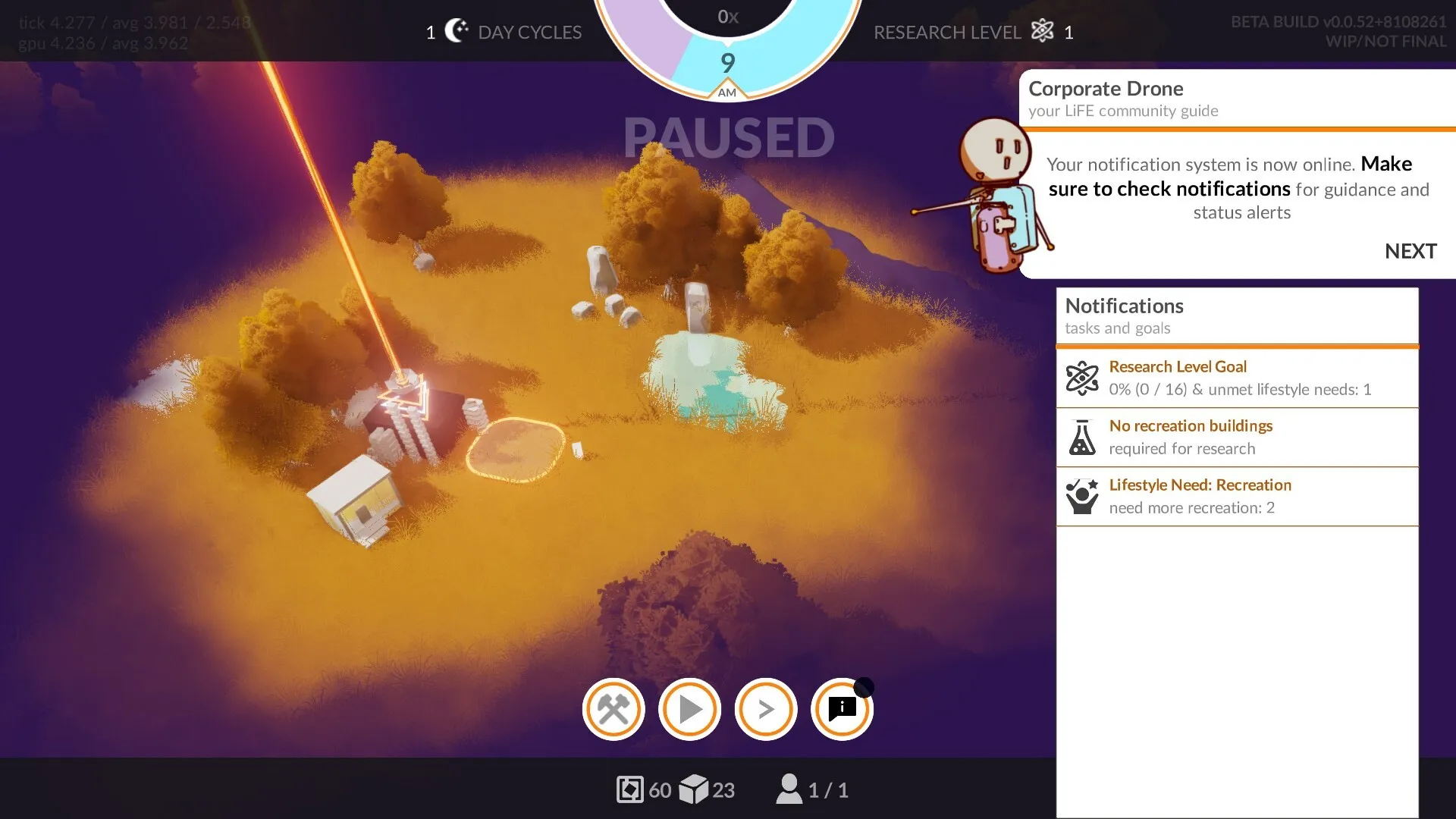
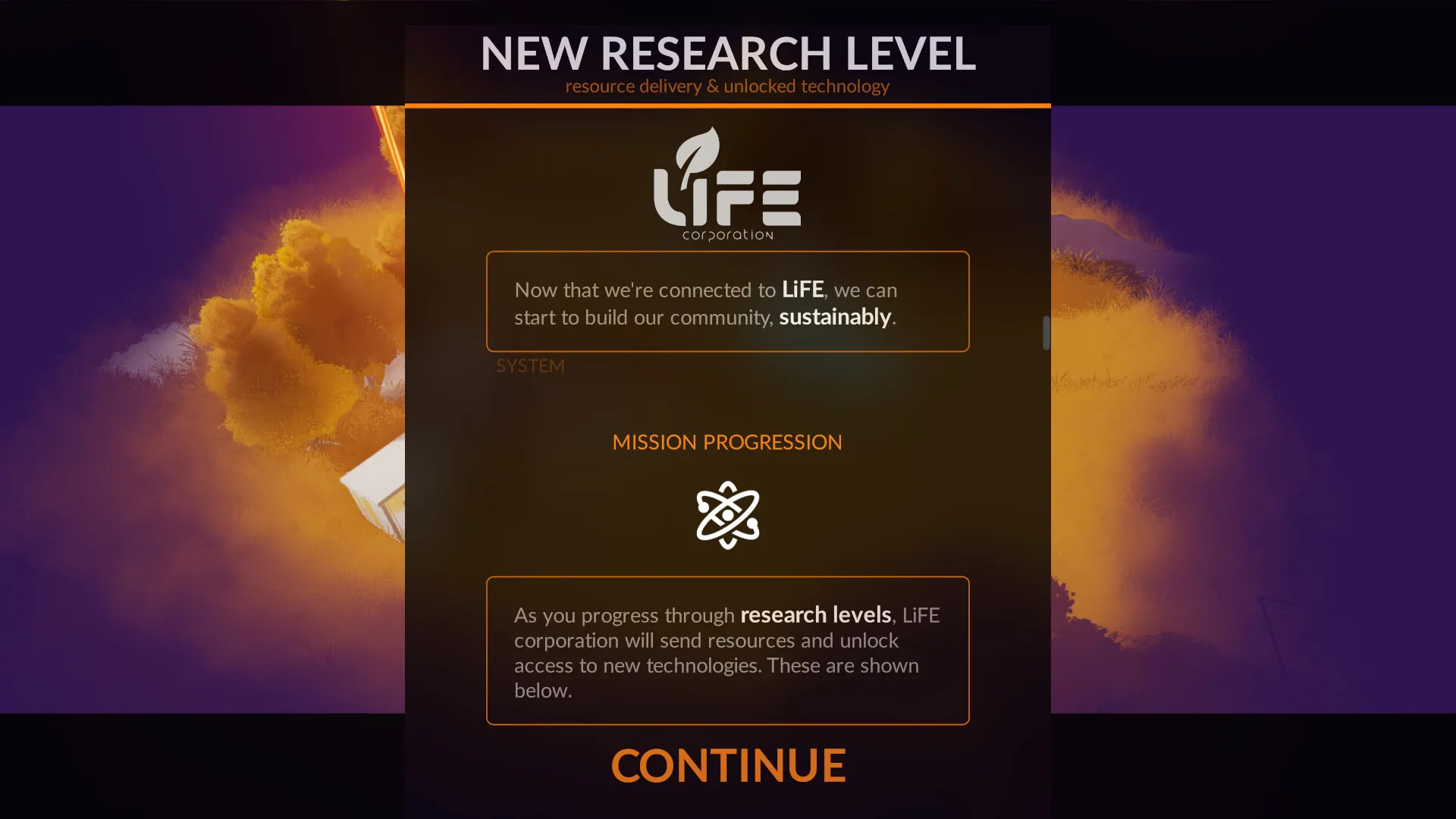
We also have a view that displays game progression at each milestone, which also uses yarn.
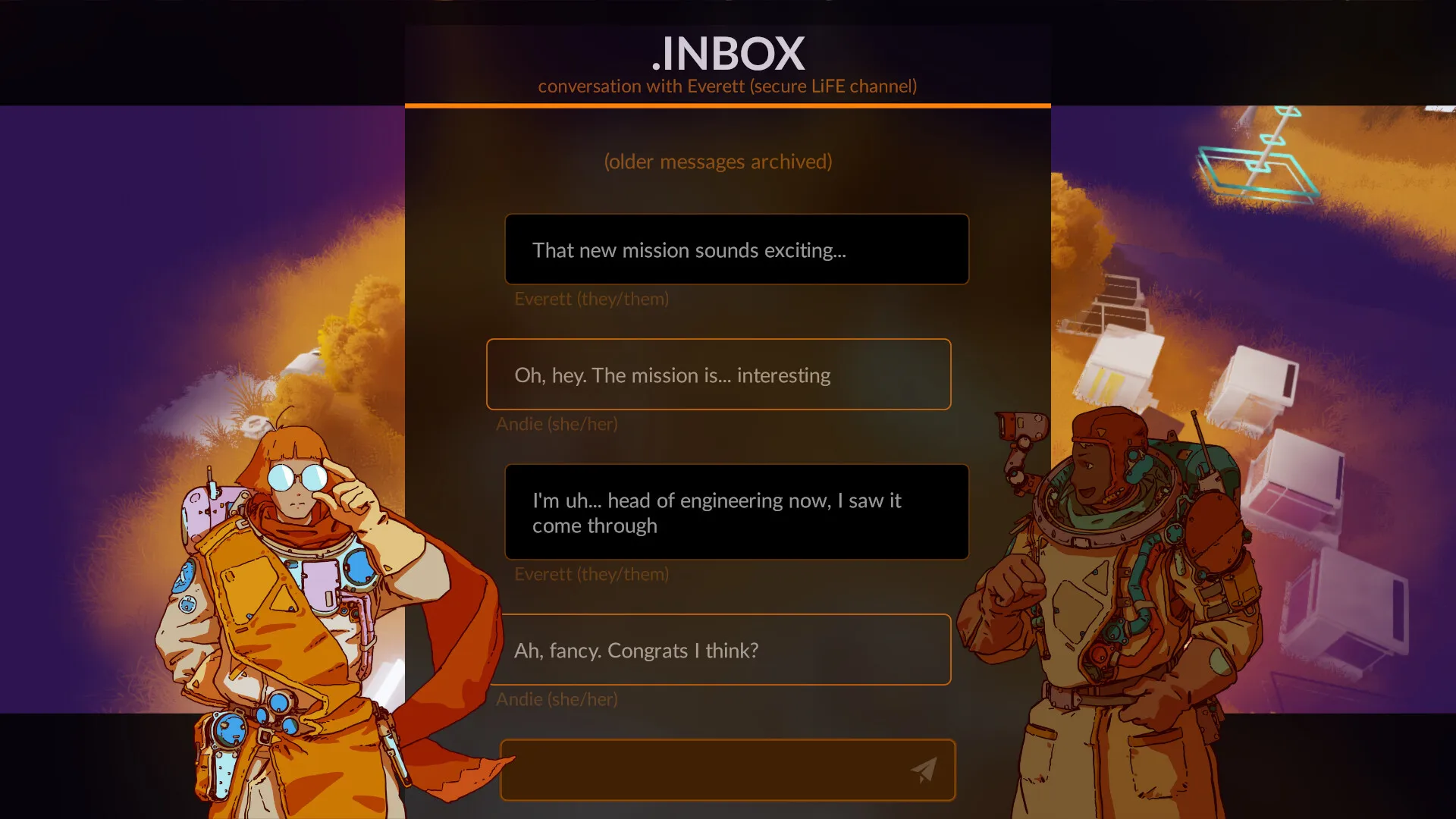
And of course, we have dialogue where two character talk, their poses are controlled by the yarn files, and the messages are displayed like a chat application.
PrintView
Section titled “PrintView”From the yarn module sample, you’ll find an empty dialogue view that prints the dialogue to the log. This gives you an idea of events the view is sent.
You can save this in your project to play around with it.
import "yarn: view" for DialogueView, LineStatus
class PrintView is DialogueView {
  var select: Fn = null
  construct new() {}
  on_dialogue_started() { Log.print("dialogue: started!") }  on_dialogue_complete() { Log.print("dialogue: complete!") }  on_line_status_changed(line: Line) {    Log.print("dialogue: line changed status to `%(LineStatus.name(line.status))`")  }
  run_line(line: Line, on_line_finished: Fn) {    select = null    Log.print("%(line.text)")    on_line_finished.call()  }
  run_options(options: List, on_option_selected: Fn) {    for(option in options) {      Log.print("  -> %(option.index) - %(option.line.text)")    }    select = on_option_selected  }
  dismiss_line(on_dismiss_finished: Fn) {    on_dismiss_finished.call()  }
  choose(option: Num) {    if(select) select.call(option)    select = null  }
  ready_for_next_line() {}
}
Right after creating the dialogue, we can add the view to it:
Dialogue.create(talk)Dialogue.add_view(talk, PrintView.new())Now when we run the dialogue with start, it should print the first line to the console.
Interaction
Section titled “Interaction”The dialogue will wait to progress until it’s told to continue. Your view can choose to automatically progress the dialogue as well internally.
To tell the dialogue we’re ready to progress, we use ready_for_next_line.
Dialogue.ready_for_next_line(talk)And to tell the dialogue which choice the player made from the list of options we can use choose.
The number is the index of the option from the list given to your view when receving options.
Dialogue.choose(talk, 0)Full example
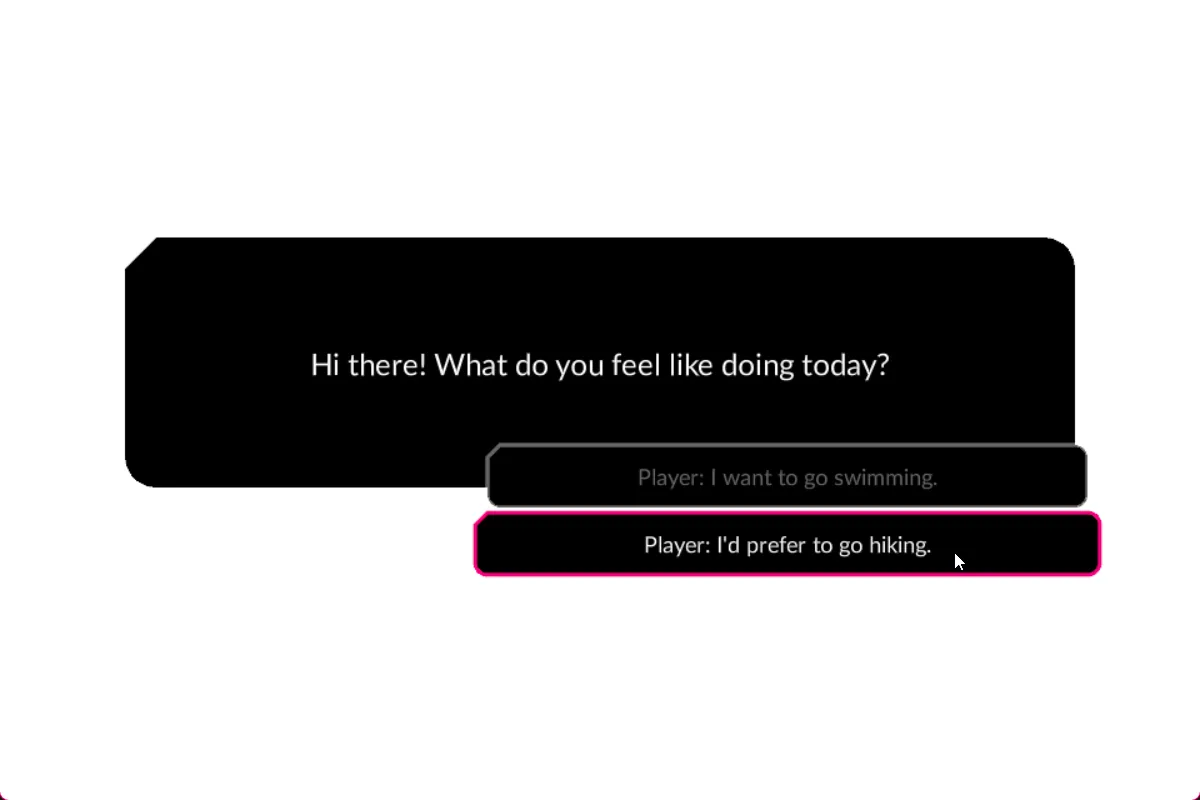
Section titled “Full example”To view a full example including visual views (made with Draw), the yarn module provides a sample alongside the module.
If you use the luxe launcher to view the module, open folder on it, and look inside samples/.
Conclusion
Section titled “Conclusion”We’d like to add some more helpers and views to make it easier to use out the box and get started right away. We’ll add these in future.