
Match 3 - After the prototype
See it in motion
Section titled “See it in motion”Part 3 is largely about re-organizing our code into a neater structure.
Grid Input ownership
Section titled “Grid Input ownership”Instead of having a bunch of code inside our grid logic tick function, we can move the logic into a modifier dedicated to handling input for the grid.
This allows the input handling to be more nuanced, exposing it’s own API and tools for the game to use without muddying up the grid logic.
Grid changes
Section titled “Grid changes”The grid doesn’t really care about input specifically, it cares about a cursor location and a selected location.
We’ll start by changing our grid.modifier.wren, specifically the Data class, to add a cursor:
... //existing code
#doc = "Currently selected cell"var selected: Float2 = [-1,-1]#doc = "Currently highlighted cell"var cursor: Float2 = [-1,-1]
This allows us to set the cursor from the grid input system.
The Grid API
Section titled “The Grid API”We’ll also need to speak to the grid from elsewhere in our game, which is what the API class is for!
There’s a few pieces of the puzzle that we’ll need.
It would be nice to be able to convert coordinates to the grid, check if a coordinate is within the grid space, and interact with the grid (e.g a select, or swap). We’d also need to know if a cell was busy.
The API class is the user facing interface to our system.
What that means is:
- We should name things clearly
- We should add type annotations to describe our intention
- We should add documentation to the endpoints
Speaking to our system from API
Section titled “Speaking to our system from API”Inside our API we have a few helpers to access our system or data for an entity.
system(entity: Entity) : System- get our system code from an entity with Grid attached
system_in(world: World) : System- get our system in the given world
get(entity: Entity) : Data- return the data for the given entity
This gives us the tools to communicate with the entity, or system based on common inputs to a system.
The API additions
Section titled “The API additions”Add the following to the our API class:
class Grid is API {
  #doc = "Convert a world space position to grid cell coordinates"  static world_to_grid(entity: Entity, world_x: Num, world_y: Num) : Float2 {
    if(!Grid.has(entity)) return [0, 0]
    var system: System = system(entity)    var data: Data = get(entity)
    return system.world_to_grid(data, world_x, world_y)
  } //world_to_grid
  #doc = "Convert a grid coordinate to world space position"  static grid_to_world(entity: Entity, grid_x: Num, grid_y: Num) : Float2 {
    if(!Grid.has(entity)) return [0, 0]
    var system: System = system(entity)    var data: Data = get(entity)
    return system.grid_to_world(data, grid_x, grid_y)
  } //grid_to_world
  #doc = "Returns a busy task from the given coordinate, if any"  static get_busy(entity: Entity, grid_x: Num, grid_y: Num) : Busy {
    if(!Grid.has(entity)) return null
    var system: System = system(entity)
    return system.busy_cells["%(grid_x)-%(grid_y)"]
  } //get_busy
  #doc = "Returns true if the given grid coordinates are within the grid"  static in_grid(entity: Entity, grid_x: Num, grid_y: Num) : Bool {
    if(!Grid.has(entity)) return false
    var system: System = system(entity)    var data: Data = get(entity)
    return system.in_grid(data, grid_x, grid_y)
  } //in_grid
  #doc = "Interact with the grid, selecting or swapping as needed"  static interact(entity: Entity) : None {
    if(!Grid.has(entity)) return
    var system: System = system(entity)    system.interact(entity)
  } //interact
} // Grid
The implementation details
Section titled “The implementation details”Now that we’ve exposed an API forwarding calls to our system, we should add the implementation details for those functions.
The in_grid and coordinate functions already existed, so we only need one: interact.
Add the following function to your System class.
Note that it takes the entity this time, and is a lot cleaner and easier to understand.
interact(entity: Entity) {
  var data: Data = get(entity)  var cursor = data.cursor  var selected = data.selected
  //trying to select the same cell? deselect and do nothing  if(data.selected.x == cursor.x && data.selected.y == cursor.y) {    data.selected = [-1, -1]    return  }
  //if we have a selection, and it's adjacent to the cursor, swap  if(is_adjacent(selected.x, selected.y, cursor.x, cursor.y)) {    swap(data, selected.x, selected.y, cursor.x, cursor.y)    data.selected = [-1, -1]    return  }
  //no selection, and no swap, update our selection  data.selected = [cursor.x, cursor.y]
} //interact
Cleaning up the tick function
Section titled “Cleaning up the tick function”Here’s the code we’ll be removing from the tick function in our grid System class:
// tick busy taskstick_busy(data, delta)
var grid_mouse = world_to_grid(data, mouse.x, mouse.y)var valid_mouse = in_grid(data, grid_mouse.x, grid_mouse.y)
var selected = data.selectedvar had_selected = selected.x != -1 && selected.y != -1if(had_selected) {  var selected_pos = grid_to_world(data, selected.x, selected.y)  Draw.rect(draw,    selected_pos.x, selected_pos.y, 0,    block_width, block_height, 0, style.color(Color.pink))}
if(valid_mouse) {  var mouse_draw_pos = grid_to_world(data, grid_mouse.x, grid_mouse.y)  Draw.rect(draw,    mouse_draw_pos.x, mouse_draw_pos.y, 0,    block_width, block_height, 0, style.color(Color.black))
  if(Input.mouse_state_released(MouseButton.left)) {    if(had_selected) {      var allow_swap = is_adjacent(selected.x, selected.y, grid_mouse.x, grid_mouse.y)      if(selected.x == grid_mouse.x && selected.y == grid_mouse.y) {        data.selected = [-1, -1]      } else if(allow_swap) {        swap(data, selected.x, selected.y, grid_mouse.x, grid_mouse.y)        data.selected = [-1, -1]      }    } else {      data.selected = grid_mouse    }  } //if left click
} //if valid mouse
for(y in 0 ... data.height) {
And here’s the code that will take it’s place:
// tick busy taskstick_busy(data, delta)
var selected = data.selectedvar cursor = data.cursor
//if we have a selection, draw itif(in_grid(data, selected.x, selected.y)) {  var draw_pos = grid_to_world(data, selected.x, selected.y)  Draw.rect(draw,    draw_pos.x, draw_pos.y, 0,    block_width, block_height, 0, style.color(Color.pink))}
//if we have a cursor, draw thatif(in_grid(data, cursor.x, cursor.y)) {  var draw_pos = grid_to_world(data, cursor.x, cursor.y)  Draw.rect(draw,    draw_pos.x, draw_pos.y, 0,    block_width, block_height, 0, style.color(Color.black))}
for(y in 0 ... data.height) {
That’s it for the grid changes! Let’s add the input system.
The input system
Section titled “The input system”Create a new modifier for the grid input:
-
Section titled “system/grid_input.modifier.wren”system/grid_input.modifier.wrenCreate an empty file named
grid_input.modifier.wrenin thesystem/folder. -
Run the build
Section titled “Run the build”This will generate the contents for you to edit.
-
Edit details
Section titled “Edit details”We update our system definition with some details.
#api#display = "Match3 Grid Input"#desc = "**Input handling for Match 3 Grid**. Contains the mouse input handling and communicates it to the grid"#icon = "luxe: image/modifier/modifier.svg"class GridInput is API {//add public facing API here}
And like before, we attach it to the same entity as the grid. This is an assumption the input system will make.
Back inside of game.wren:
import "system/grid.modifier" for Gridimport "system/grid_input.modifier" for GridInput
class Game is Ready {
  var grid: Entity = Entity.none
  construct ready() {
    super("ready! %(width) x %(height) @ %(scale)x")
    grid = Entity.create(world, "grid")    Grid.create(grid)    GridInput.create(grid)
  } //ready
The input handling logic
Section titled “The input handling logic”Back inside of grid_input.modifier.wren we’re going to need to add some imports at the top of the file:
import "luxe: input" for Input, MouseButton, Keyimport "luxe: world" for Camera
//we'll speak to the grid APIimport "system/grid.modifier" for Grid
And here’s our tick function, inside of System, inside the grid_input.modifier.wren file:
tick(delta: Num) {
  var mouse = Camera.screen_point_to_world(Camera.get_default(world), Input.mouse_x(), Input.mouse_y())  var interact = Input.mouse_state_released(MouseButton.left)
  each {|entity: Entity, data: Data|
    var grid_mouse = Grid.world_to_grid(entity, mouse.x, mouse.y)
    //If the cursor is valid    if(Grid.in_grid(entity, grid_mouse.x, grid_mouse.y)) {
      //set it before we interact, so it's up to date      Grid.set.cursor(entity, grid_mouse)
      //Interact with the grid      if(interact) {        Grid.interact(entity)      }
    } else {
      //If not inside the grid, just set it to a well known value      Grid.set.cursor(entity, [-1, -1])
    }
  } //each
} //tick
We can now run the game, and nothing would have changed! It should work exactly the same. But, things are much cleaner and clearer.
Grid Visuals
Section titled “Grid Visuals”The next thing we’re going to do is move our grid drawing into it’s own system.
Create a new system for that:
-
Section titled “system/grid_visuals.modifier.wren”system/grid_visuals.modifier.wrenCreate an empty file named
grid_visuals.modifier.wrenin thesystem/folder. -
Run the build
Section titled “Run the build”This will generate the contents for you to edit.
-
Edit details
Section titled “Edit details”We update our system definition with some details.
#api#display = "Match3 Grid Visuals"#desc = "**Visuals for a Match 3 Grid**. Handles displaying the grid state in the game"#icon = "luxe: image/modifier/modifier.svg"class GridVisuals is API {//add public facing API here}
And we’ll add it to the same entity just like before!
We’ll also add a Transform, because we’re going to rely on that for positioning our grid in world space (Transform should already be imported).
Back inside of game.wren:
import "system/grid.modifier" for Gridimport "system/grid_input.modifier" for GridInputimport "system/grid_visuals.modifier" for GridVisuals
class Game is Ready {
  var grid: Entity = Entity.none
  construct ready() {
    super("ready! %(width) x %(height) @ %(scale)x")
    grid = Entity.create(world, "grid")    Grid.create(grid)    GridInput.create(grid)    GridVisuals.create(grid)
    Transform.create(grid)
  } //ready
The imports
Section titled “The imports”Add these to the top of grid_visuals.modifier.wren.
We’ll speak to the grid, but we’ll also need the Busy task class!
import "luxe: draw" for Draw, PathStyleimport "luxe: color" for Color
import "system/grid.modifier" for Grid, GridRow, Busy
The data
Section titled “The data”In our debug visualization / prototype version of the visuals, we held some values like block_width, and grid_left in the system.
Now that we’re organizing into a more structured approach, this becomes data on our visuals system, so that it becomes configurable.
The grid_left/grid_bottom are now going to be controlled by a Transform on the visual entity, so we can skip those.
#block = dataclass Data { var block_width: Num = 64 var block_height: Num = 64}The grid visuals API
Section titled “The grid visuals API”The visuals own the concept of block size, because it’s not related to the logical gameplay grid, but purely a visual concern.
The functions in Grid that we had, world_to_grid and the inverse, are all visual related and use those values. They belong in this system!
Inside grid.modifier.wren we change the Grid API class, removing those endpoints:
class Grid is API {
  #doc = "Convert a world space position to grid cell coordinates"  static world_to_grid(entity: Entity, world_x: Num, world_y: Num) : Float2 {
    if(!Grid.has(entity)) return [0, 0]
    var system: System = system(entity)    var data: Data = get(entity)
    return system.world_to_grid(data, world_x, world_y)
  } //world_to_grid
  #doc = "Convert a grid coordinate to world space position"  static grid_to_world(entity: Entity, grid_x: Num, grid_y: Num) : Float2 {
    if(!Grid.has(entity)) return [0, 0]
    var system: System = system(entity)    var data: Data = get(entity)
    return system.grid_to_world(data, grid_x, grid_y)
  } //grid_to_world
  #doc = "Returns a busy task from the given coordinate, if any"  static get_busy(entity: Entity, grid_x: Num, grid_y: Num) : Busy {
And we add those directly to the GridVisuals API class inside grid_visuals.modifier.wren:
class GridVisuals is API {
  #doc = "Convert a world space position to grid cell coordinates"  static world_to_grid(entity: Entity, world_x: Num, world_y: Num) : Float2 {
    if(!Grid.has(entity)) return [0, 0]
    var system: System = system(entity)    var data: Data = get(entity)
    return system.world_to_grid(data, world_x, world_y)
  } //world_to_grid
  #doc = "Convert a grid coordinate to world space position"  static grid_to_world(entity: Entity, grid_x: Num, grid_y: Num) : Float2 {
    if(!Grid.has(entity)) return [0, 0]
    var system: System = system(entity)    var data: Data = get(entity)
    return system.grid_to_world(data, grid_x, grid_y)
  } //grid_to_world
}
And of course we should bring the system changes over next!
The grid visuals System
Section titled “The grid visuals System”First we remove (cut) these variables from System inside grid.modifier.wren:
class System is Modifier {
  var rng: Random = Random.new()
  //our busy handling  var fiber: Fiber = null  var busy_cells = {}
  //debug visualization  var draw: Draw = null  var style: PathStyle = PathStyle.new()  var grid_left = 100  var grid_bottom = 64  var block_width = 64  var block_height = 64  var sides = [32, 3, 4, 5, 6, 32]  var colors = [    Color.hex_code( "#363a4f" ), //1    Color.hex_code( "#8839ef" ), //2    Color.hex_code( "#04a5e5" ), //3    Color.hex_code( "#e64553" ), //4    Color.hex_code( "#40a02b" ), //5    Color.hex_code( "#fa8621" ), //6  ]
Then we can paste them into our System class inside grid_visuals.modifier.wren.
We remove the block size here as we’re moved that into our user facing Data.
class System is Modifier {
  //debug visualization  var draw: Draw = null  var style: PathStyle = PathStyle.new()  var grid_left = 100  var grid_bottom = 64  var block_width = 64  var block_height = 64  var sides = [32, 3, 4, 5, 6, 32]  var colors = [    Color.hex_code( "#363a4f" ), //1    Color.hex_code( "#8839ef" ), //2    Color.hex_code( "#04a5e5" ), //3    Color.hex_code( "#e64553" ), //4    Color.hex_code( "#40a02b" ), //5    Color.hex_code( "#fa8621" ), //6  ]
We also move the init of the Draw context from grid.modifier.wren to grid_visuals.modifier.wren
init(world: World) {  Log.print("init `%(This)` in world `%(world)`")
draw = Draw.create(World.render_set(world)) style.color = Color.black style.thickness = 4}init(world: World) { Log.print("init `%(This)` in world `%(world)`")
draw = Draw.create(World.render_set(world)) style.color = Color.black style.thickness = 4}Conversion helpers
Section titled “Conversion helpers”We also move the world_to_grid/grid_to_world from grid.modifier.wren to grid_visuals.modifier.wren
  world_to_grid(data: Data, x: Num, y: Num) {    var grid_h = data.height * block_height    var grid_x = ((x - grid_left) / block_width).floor    var grid_y = ((y - grid_bottom) / block_height).floor    //now invert the Y because we were in y+ up world    grid_y = (data.height - 1) - grid_y
    return [grid_x, grid_y]  }
  grid_to_world(data: Data, x: Num, y: Num) {    //we subtract because y+ is up,    //and we add 1 because we want the bottom left    //(not top left) for world space!    return [      grid_left + (x * block_width),      grid_bottom + ((data.height - y - 1) * block_height)    ]  }
We can’t use them directly, so we need to make some modifications after copy/pasting the code.
data: Datahas changed to mean ‘the visual Data’data.heightwas the grid logical height, we fetch that fromGrid- we keep
grid_leftandgrid_bottom(for now)
world_to_grid(data: Data, x: Num, y: Num) {  var logical_height = Grid.get.height(data.entity)  var grid_h = logical_height * data.block_height  var grid_x = ((x - grid_left) / data.block_width).floor  var grid_y = ((y - grid_bottom) / data.block_height).floor  //now invert the Y because we were in y+ up world  grid_y = (logical_height - 1) - grid_y
  return [grid_x, grid_y]}
grid_to_world(data: Data, x: Num, y: Num) {  var logical_height = Grid.get.height(data.entity)  //we subtract because y+ is up,  //and we add 1 because we want the bottom left  //(not top left) for world space!  return [    grid_left + (x * data.block_width),    grid_bottom + ((logical_height - y - 1) * data.block_height)  ]}
The actual drawing
Section titled “The actual drawing”And we need to move the actual drawing out of our System class in grid.modifier.wren.
You should cut everything and leave it with just the grid specifics, like this:
  tick(delta: Num) {
    each {|entity: Entity, data: Data|
      // tick busy tasks      tick_busy(data, delta)
    } //each entity
  } //tick
}
And we paste the drawing contents into our tick function in grid_visuals.modifier.wren.
Like before we have to change the code a little to fit its new home!
- We use
Grid.get.*to fetch grid data we need - We use
data.block_width/data.block_height
Here’s the complete tick function after the changes:
tick(delta: Num) {
  each {|entity: Entity, data: Data|
    var grid_width = Grid.get.width(entity)    var grid_height = Grid.get.height(entity)    var grid_rows = Grid.get.rows(entity)
    var selected = Grid.get.selected(entity)    var cursor = Grid.get.cursor(entity)    var block_width = data.block_width    var block_height = data.block_height
    //if we have a selection, draw it    if(Grid.in_grid(entity, selected.x, selected.y)) {      var draw_pos = grid_to_world(data, selected.x, selected.y)      Draw.rect(draw,        draw_pos.x, draw_pos.y, 0,        block_width, block_height, 0, style.color(Color.pink))    }
    //if we have a cursor, draw that    if(Grid.in_grid(entity, cursor.x, cursor.y)) {      var draw_pos = grid_to_world(data, cursor.x, cursor.y)      Draw.rect(draw,        draw_pos.x, draw_pos.y, 0,        block_width, block_height, 0, style.color(Color.black))    }
    for(y in 0 ... grid_height) {
      var row: GridRow = grid_rows[y]
      for(x in 0 ... grid_width) {
        var kind = row.columns[x]        if(kind == 0) continue
        var y_offset = 0        var x_offset = 0        var scale = 1
        var busy: Busy = Grid.get_busy(entity, x, y)        if(busy) {          // how far into the wait are we?          // this is a 0...1 range value          var ratio = busy.timer / busy.wait
          if(busy.kind == Busy.DESTROY) {            // since we're destroying, scale down from 1            // and don't let it go too small            scale = ( 1.0 - ratio ).max(0.1)          }
          if(busy.kind == Busy.CREATE) {            // since we're creating, scale from from 0 to 1            scale = ratio.max(0.1)          }
          if(busy.kind == Busy.MOVE) {            var distance = block_height * (busy.dest_y - busy.y)            y_offset = distance * ratio          }
          if(busy.kind == Busy.SWAP) {            var dist_x = block_width * (busy.dest_x - busy.x)            var dist_y = block_height * (busy.dest_y - busy.y)            x_offset = dist_x * ratio            y_offset = dist_y * ratio          }        }
        var pos = grid_to_world(data, x, y)            pos.x = pos.x + x_offset            pos.y = pos.y - y_offset        var color = colors[kind - 1]        var sides = sides[kind - 1]        var half_width = block_width / 2        var half_height = block_height / 2        var radius_x = half_width * 0.9 * scale        var radius_y = half_height * 0.9 * scale
        Draw.ngon_solid(draw, pos.x + half_width, pos.y + half_height, 0, radius_x, radius_y, sides, 90, color)
      } //each column
    } //each row
  } //each
  Draw.commit(draw)
}
The GridInput changes
Section titled “The GridInput changes”Since we moved the world_to_grid into our GridVisuals, we should use that from GridInput instead.
At the top of grid_input.modifier.wren add this line:
import "system/grid.modifier" for Gridimport "system/grid_visuals.modifier" for GridVisualsAnd then the changes to the tick function, using the new API instead:
  tick(delta: Num) {
    var mouse = Camera.screen_point_to_world(Camera.get_default(world), Input.mouse_x(), Input.mouse_y())    var interact = Input.mouse_state_released(MouseButton.left)
    each {|entity: Entity, data: Data|
      var grid_mouse = GridVisuals.world_to_grid(entity, mouse.x, mouse.y)      ...
Something for Nothing
Section titled “Something for Nothing”If everything goes as planned, the game will be exactly the same. It feels like we did all that and nothing changed!
That’s a good feeling, it means everything is working but a lot cleaner to maintain and build on top of.
Brief detour: the Debug module
Section titled “Brief detour: the Debug module”If we add the debug module to our project, and inspect our game world, we can select the grid entity and play with some of the values:
Because the visuals are drawn every frame and use the block size data we exposed, we can change these and see the results in realtime for fun.
Using Transform
Section titled “Using Transform”Inside grid_visuals.modifier.wren we can add Transform to the world import:
import "luxe: world" for Entity, World, TransformWe can remove these two variables from System
class System is Modifier {
  //debug visualization  var draw: Draw = null  var style: PathStyle = PathStyle.new()  var grid_left = 100  var grid_bottom = 64
And we add them locally to our conversion helpers, using Transform this time:
world_to_grid(data: Data, x: Num, y: Num) {  var grid_left = Transform.get_pos_x_world(data.entity)  var grid_bottom = Transform.get_pos_y_world(data.entity)  var logical_height = Grid.get.height(data.entity)  var grid_h = logical_height * data.block_height  var grid_x = ((x - grid_left) / data.block_width).floor  var grid_y = ((y - grid_bottom) / data.block_height).floor  //now invert the Y because we were in y+ up world  grid_y = (logical_height - 1) - grid_y
  return [grid_x, grid_y]}
grid_to_world(data: Data, x: Num, y: Num) {  var grid_left = Transform.get_pos_x_world(data.entity)  var grid_bottom = Transform.get_pos_y_world(data.entity)  var logical_height = Grid.get.height(data.entity)  //we subtract because y+ is up,  //and we add 1 because we want the bottom left  //(not top left) for world space!  return [    grid_left + (x * data.block_width),    grid_bottom + ((logical_height - y - 1) * data.block_height)  ]}
And finally back in game.wren we can change the Transform now with a different value:
grid = Entity.create(world, "grid")Grid.create(grid)GridInput.create(grid)GridVisuals.create(grid)
Transform.create(grid)Transform.set_pos(grid, 64, 64)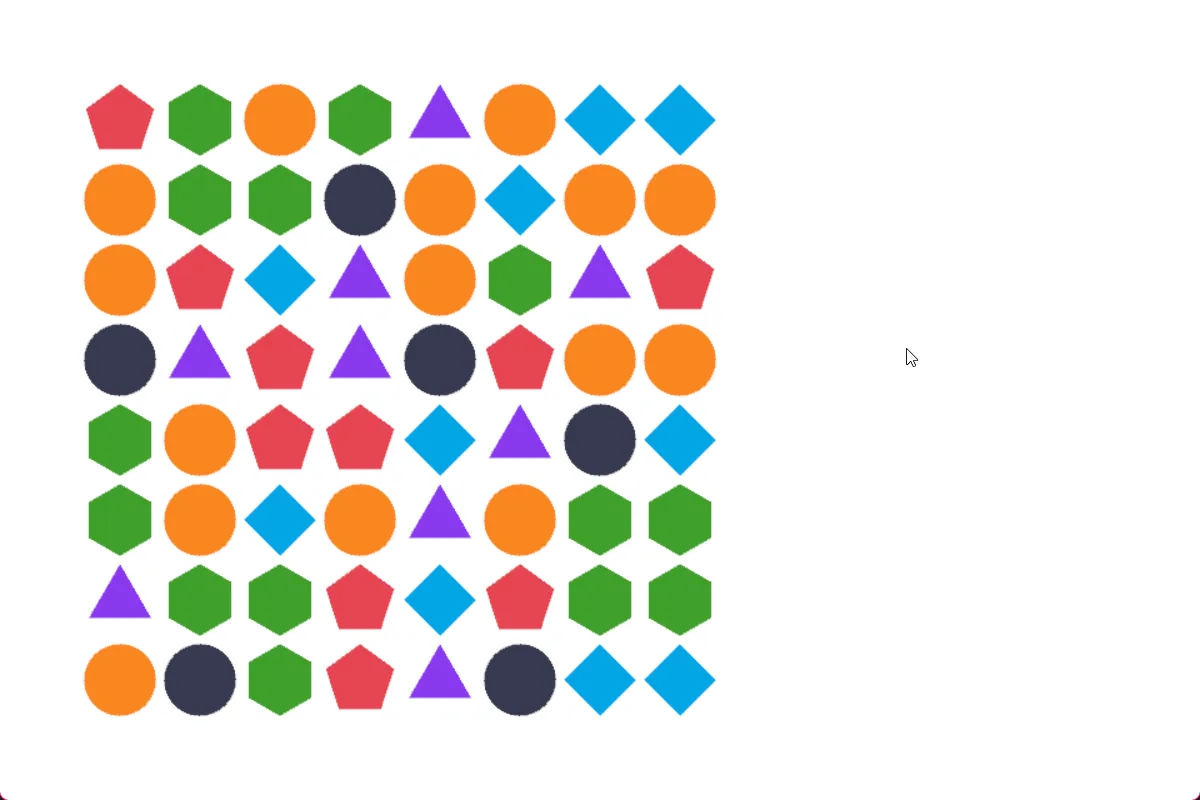
This means we can position the grid in the world easily around other entities.
There’s one more step: the render depth.
We used 0 in our tick function all along, but if we want the grid to co-exist with the world as is, we should update those.
Update the tick function in grid_visuals.modifier.wren to use the depth whenever it speaks to the Draw tool:
each {|entity: Entity, data: Data|
  var grid_width = Grid.get.width(entity)  var grid_height = Grid.get.height(entity)  var grid_rows = Grid.get.rows(entity)
  var selected = Grid.get.selected(entity)  var cursor = Grid.get.cursor(entity)  var block_width = data.block_width  var block_height = data.block_height  var depth = Transform.get_depth2D_world(entity)
  //if we have a selection, draw it  if(Grid.in_grid(entity, selected.x, selected.y)) {    var draw_pos = grid_to_world(data, selected.x, selected.y)    Draw.rect(draw,      draw_pos.x, draw_pos.y, depth,      block_width, block_height, 0, style.color(Color.pink))  }
  //if we have a cursor, draw that  if(Grid.in_grid(entity, cursor.x, cursor.y)) {    var draw_pos = grid_to_world(data, cursor.x, cursor.y)    Draw.rect(draw,      draw_pos.x, draw_pos.y, depth,      block_width, block_height, 0, style.color(Color.black))  }
  for(y in 0 ... grid_height) {
    var row: GridRow = grid_rows[y]
    for(x in 0 ... grid_width) {      ... //existing code
      Draw.ngon_solid(draw, pos.x + half_width, pos.y + half_height, depth, radius_x, radius_y, sides, 90, color)
    } //each column
  } //each row
This means if we changed our z value on the transform, it will respect it allowing us to put a background behind or things in front as expected.
Next time!
Section titled “Next time!”In the next part, we’re going to use the world systems to visualize the grid instead of directly with Draw.
Onto part 4!