
Add score
The grid emits the kind of block being destroyed by a match. Use it to implement score.
Is the score owned by the game, or by the Grid system? A new system?
Here’s the end result, with sprites and animations!
There’s nothing wrong with our current visuals, we could easily use Draw and polish things up and call it a day!
Though, luxe provides tools that are higher level, and make a lot of things easier, like animation, sprite effects and more.
(Plus this is a tutorial on taking a game from a prototype to a structured project!)
So the next step makes sense to use sprites instead of just shapes.
We made our grid use Transform, which means our sprites can be linked to the grid,
and they’ll automatically follow and scale as the grid does. It would still allow local transform changes,
like falling and swapping as offsets like we had before.
Sprite provides effects, like outlines, shadows, shine and others we can use to give feedback and add polish.
We can also use Anim with the Sprite modifier to animate sprite frames, if our blocks had
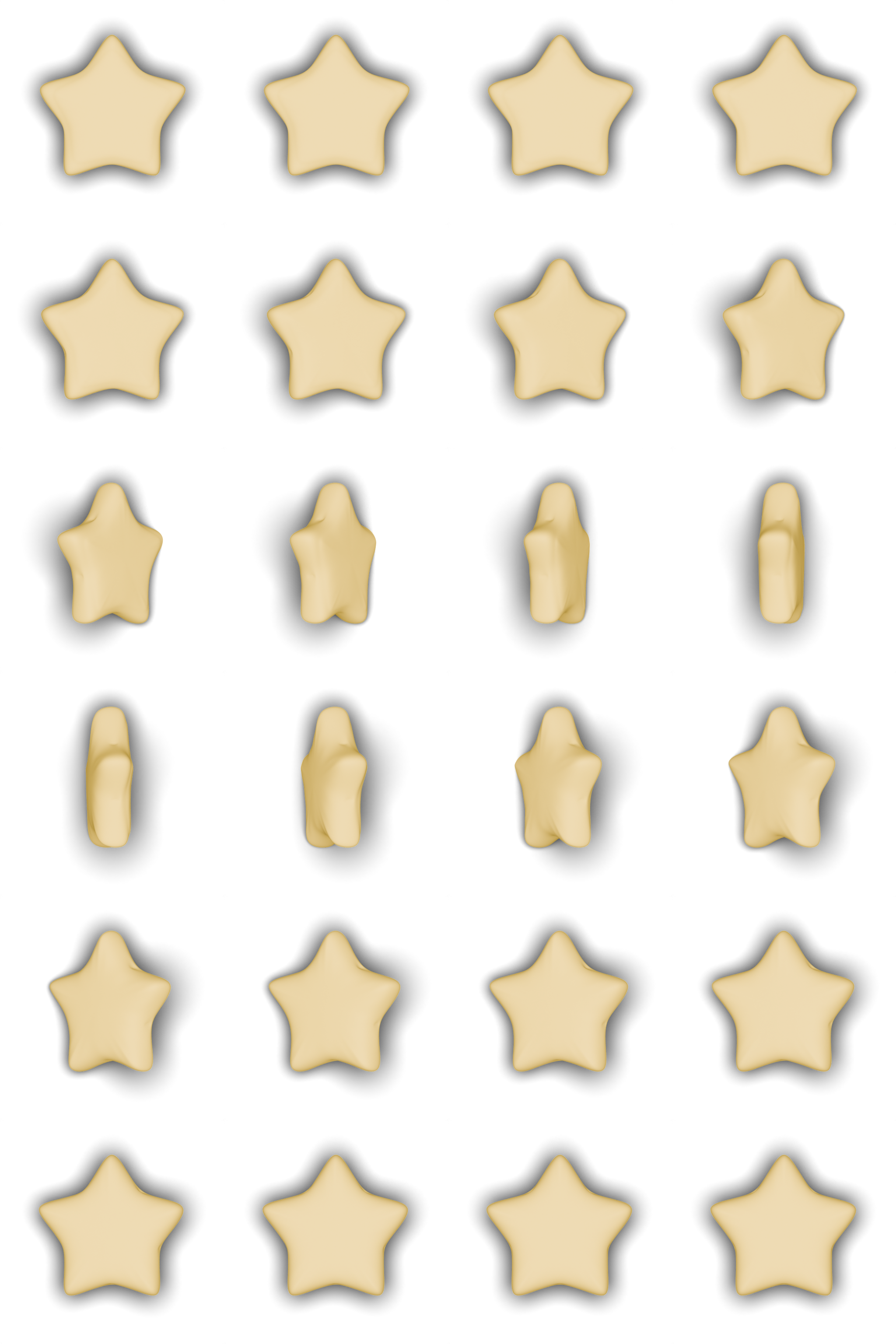
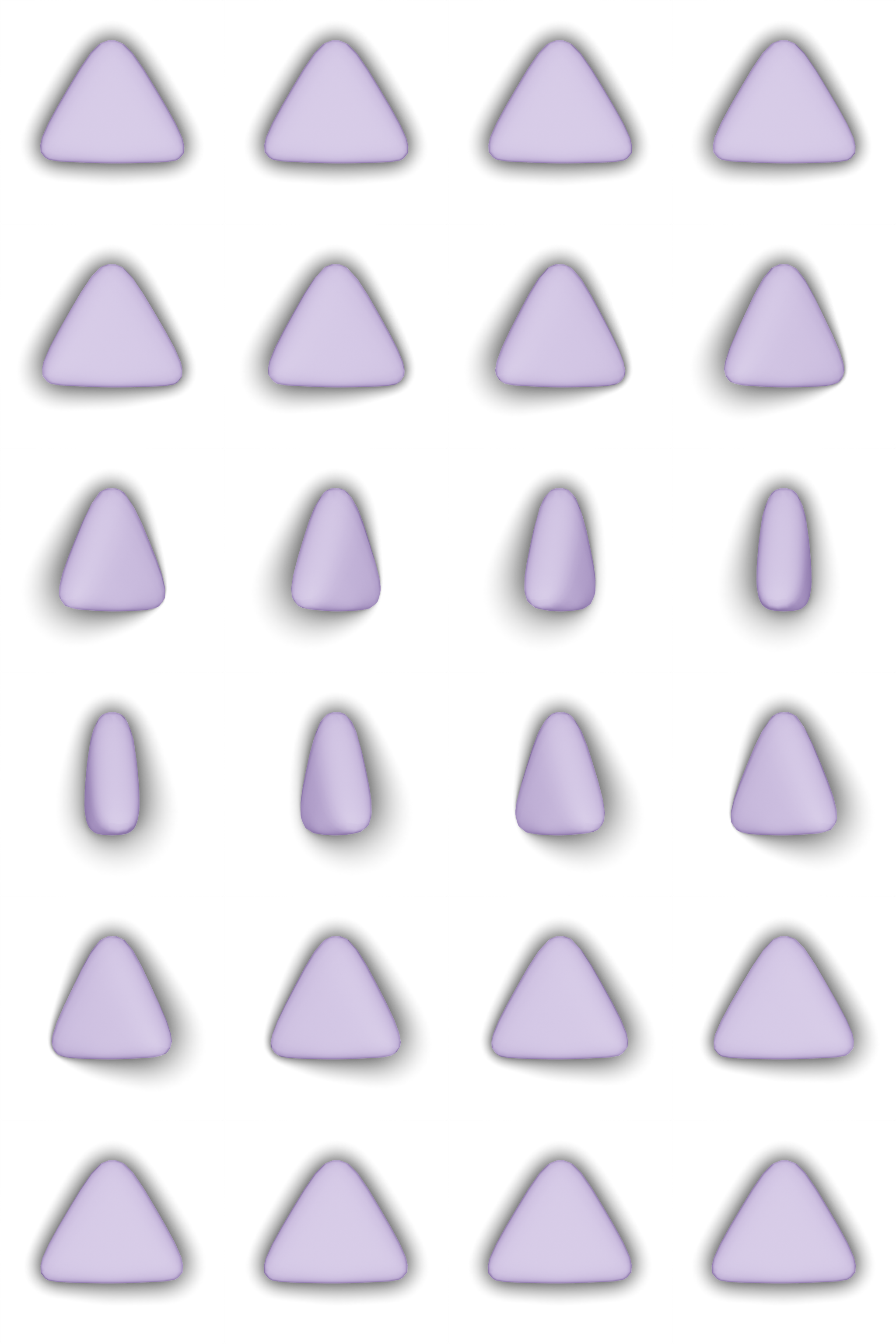
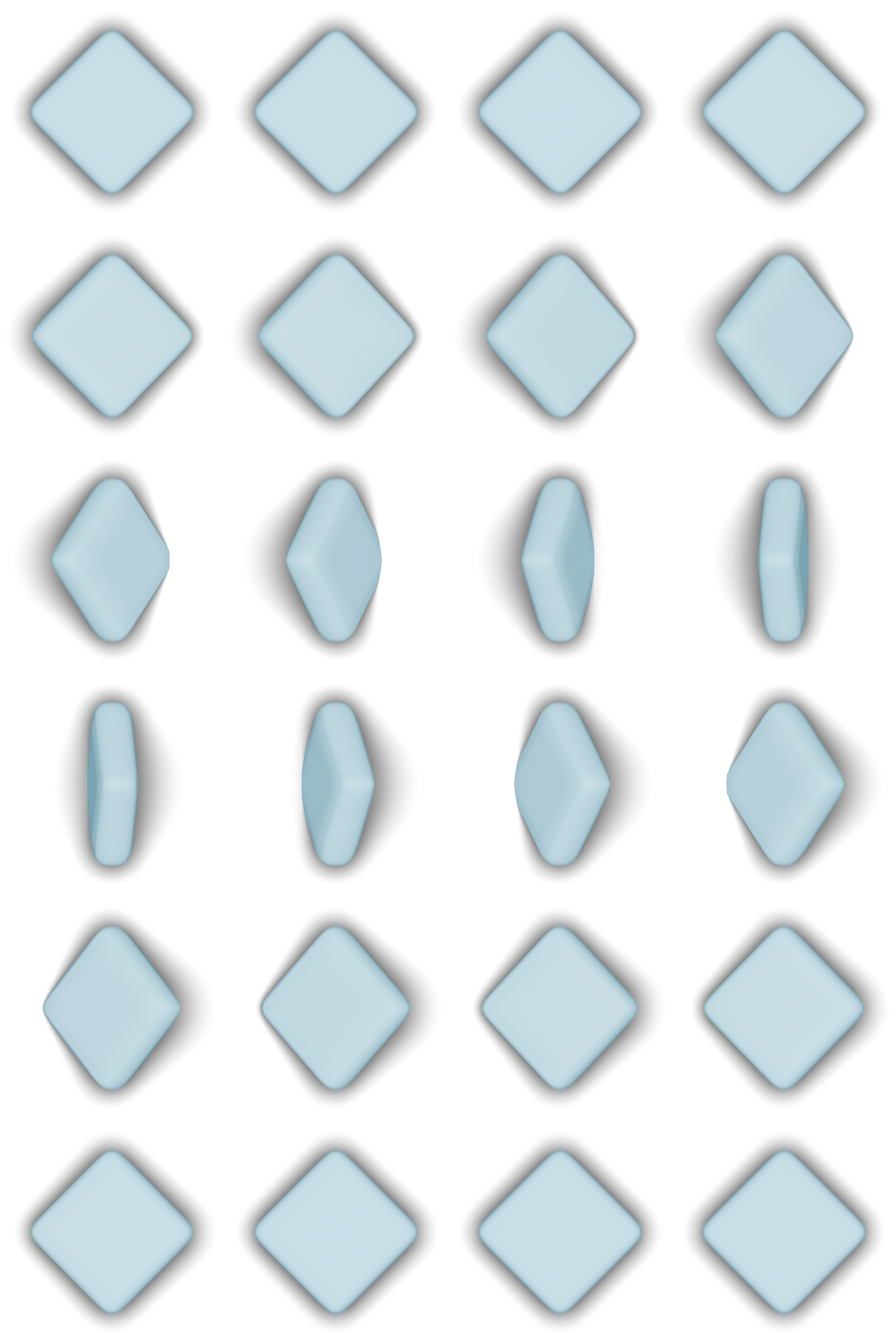
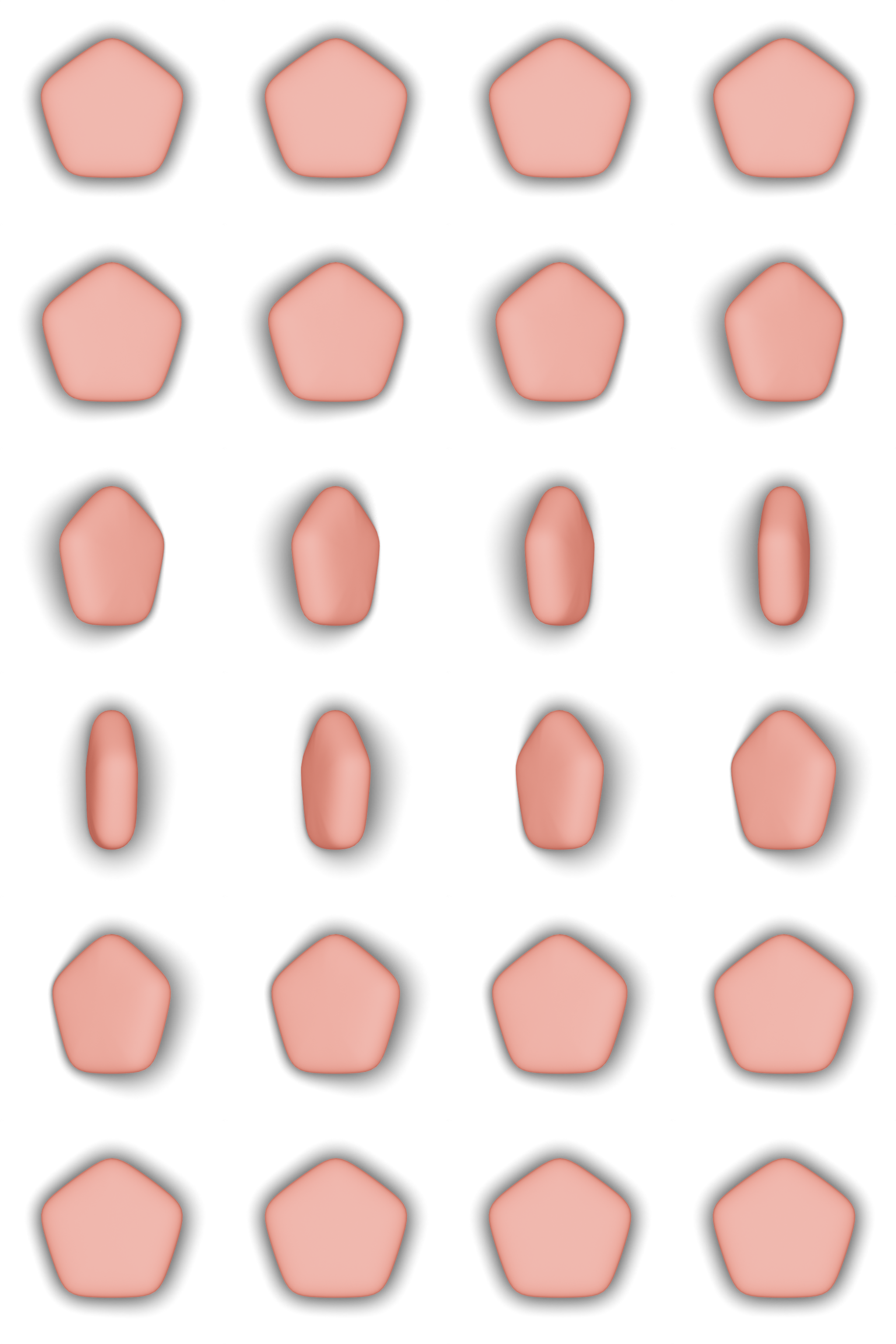
We’ve made a few sprites for this tutorial. You can save these images into your project folder under image/:
Star - Download:
Circle - Download:

Triangle - Download:
Square - Download:
Pentagon - Download:
Hexagon - Download:
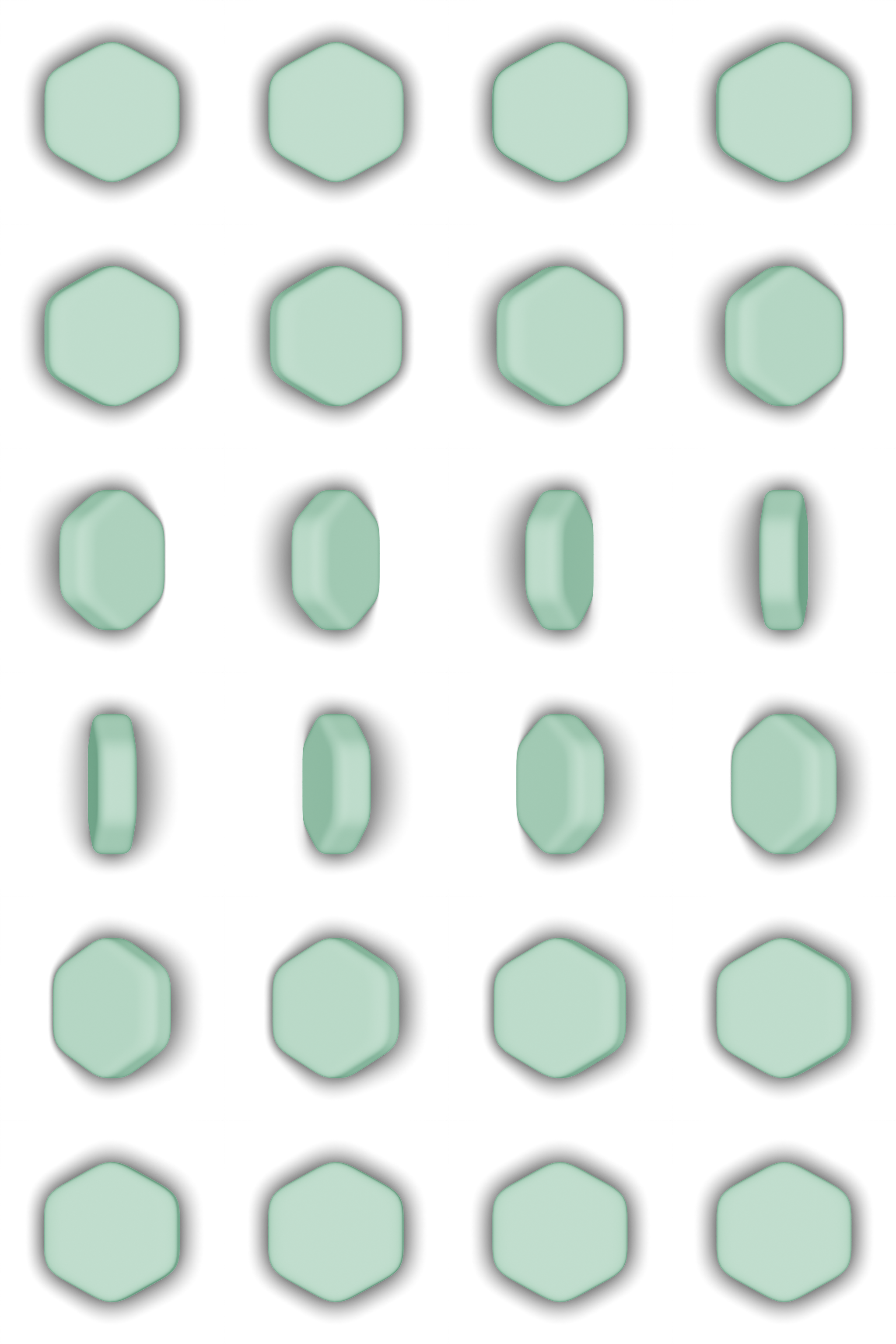
Let’s display a sprite in the middle of the screen, and animate it.
Add the following lines and read through them:
construct ready() {
  super("ready! %(width) x %(height) @ %(scale)x")
  grid = Entity.create(world, "grid")  Grid.create(grid)  GridInput.create(grid)  GridVisuals.create(grid)
  Transform.create(grid)  Transform.set_pos(grid, 64, 64)
  var entity = Entity.create(world)  Anim.create(entity)  Sprite.create(entity, Assets.image("image/star"))  Sprite.set_auto_size(entity, false)  Sprite.set_size(entity, 256, 256)  Transform.create(entity)  Transform.set_pos(entity, width/2, height/2)
  Sprite.animate(entity)        .loop()        .grid(4,6, 1,24)        .commit()
} //readyIn order for the grid visual system to know when to create/destroy a sprite, we’ll send events from the grid using Wires.
Wires send events for other systems to listen to, and they can also send typed data across the wire.
Since our event is going to need to send some info like the x/y location, the kind of block, and the change type, we’ll need to create a data block for that!
To do that we create a .block.wren file,
system/grid_change.block.wrenCreate an empty file named grid_change.block.wren in the system/ folder.
We’ll keep this alongside our grid system.
This is similar to our Data class in a modifier, it’s just a standalone data type.
#block = dataclass GridChange {  #doc = "The change kind"  var change: GridChangeType = GridChangeType.none  #doc = "Whether this is the start or end event (default true)"  var start: Bool = true  #doc = "The grid coordinate for the block"  var coord: Float2 = [-1, -1]  #doc = "The grid coordinate for the other block (swap only)"  var other: Float2 = [-1, -1]  #doc = "The kind of block"  var kind: Num = -1}
#optionclass GridChangeType { static none { "none" } static create { "create" } static destroy { "destroy" } static swap { "swap" }}change wireBefore we add the wire, we’re going to import the new type we made.
At the top of our grid.modifier.wren file, we can import this:
import "system/grid_change.block" for GridChange, GridChangeTypeAn outgoing wire requires making a wire variable and tagging it with an number ID.
In the variable section of our System class, we add a new wire variable like this:
class System is Modifier {
  var rng: Random = Random.new()
#wire = 1 #type = "system/grid_change.block" var change: Wire = Wire.create()We have two places that create blocks: fill_top and reset_grid.
We’ll add a new helper function called create_block() inside our System class in grid.modifier.wren.
This is where we’ll use the new wire we created.
The wire offers a prepare() function, which returns the data object we’ll send.
We configure it first, and then send the event along with our data.
We also move our actual grid change into here for convenience.
create_block(data: Data, x: Num, y: Num, kind: Num) { set_cell(data, x, y, kind) var event: GridChange = change.prepare() event.coord = [x, y] event.change = GridChangeType.create event.kind = kind change.send(data.entity, event)}We’ll change the two places where a block is created, and have them call this instead. In reset_grid:
reset_grid(data: Data) { for (y in 0 ... data.height) { for (x in 0 ... data.width) { var kind = safe_tile(data, x, y) set_cell(data, x, y, kind) create_block(data, x, y, kind) } }}And then fill_top as well:
fill_top(data: Data) { for (x in 0 ... data.width) { for (y in 0 ... data.height) { if (get_cell(data, x, y) == 0) { set_cell(data, x, y, rng.int(data.block_kinds) + 1) var kind = rng.int(data.block_kinds) + 1 create_block(data, x, y, kind) mark_busy(x, y, Busy.CREATE) } } //each row } //each column} //fill_topThere’s one consideration we haven’t had to think too much about: ordering of systems.
Which system goes first: Grid or GridVisuals? The answer isn’t specified (“undefined”).
We can’t rely on it being one or the other, instead we want to be more intentional.
If the grid system sends the events first, and then grid visuals is initialized, it won’t respond in time to creating the grid.
Our system has a #phase attribute which controls this.
We have a few tools for this, but we can also nudge things slightly using a number on the phase:
#system#phase(on, tick = 1)class System is Modifier {By adding = 1 here, it makes sure the grid will run after the visuals!
The event doesn’t have to be handled by any particular system. The event is broadcast in anyone needs it.
If we want to actually respond to it, we’ll need to listen for that event on the wire and do something in response.
Like before, we start by importing the event types and while we’re here, import Anim as well:
import "luxe: world" for Animimport "system/grid.modifier" for Grid, GridRow, Busyimport "system/grid_change.block" for GridChange, GridChangeTypeNow, inside our System init function, we’ll connect to the Grid change wire:
init(world: World) {  Log.print("init `%(This)` in world `%(world)`")
  draw = Draw.create(World.render_set(world))  style.color = Color.black  style.thickness = 4
Grid.connect.change(world) {|entity: Entity, event: GridChange| if(event.change == GridChangeType.create) { create_block(entity, event) } } // Grid.connect.change}It’s important to notice that the systems are communicating, and for a specific type, there is only one system per world.
All that means is that the system is the one listening, not the individual entities! We receive an entity that the event relates to.
In our case, this is the grid, but if we had say, a row of grids, or multiple match 3 grids around the world in space, we’d still respond at the system level.
SpritesWe can cut the test code from game.wren (removing it) that animated the Sprite and shape it to our needs.
Add this create_block function to the System class in our grid visuals system:
create_block(entity: Entity, event: GridChange) {
  var data = get(entity)  var x = event.coord.x  var y = event.coord.y  var kind = event.kind
  var block = Entity.create(world, "grid-%(x)-%(y)")  Anim.create(block)  Sprite.create(block, Assets.image("image/%(image_name)"))  Sprite.set_auto_size(block, false)  Sprite.set_size(block, data.block_width, data.block_height)  Transform.create(block)
  var pos = grid_to_world(data, x+0.5, y-0.5)  Transform.set_pos(block, pos.x, pos.y)
  Sprite.animate(block)        .loop()        .grid(4,6, 1,64)        .commit()
} //create_block
That should look something like this!
If we don’t clean up the entities we created, they’d stick around forever. We need a way to track them so we can destroy them too.
Since this isn’t user facing data and is temporary, we can store it in the System class.
We’ll use the same kind of key we did before like blocks["%(x)-%(y)"] to track them across the grid.
Since our System is world level, and we’re dealing with entities, we’ll track these per entity.
Add a visuals map to your System class:
class System is Modifier {
  ...
  var visuals: Map = {}
Inside attach we can initialize the blocks map for the entity.
This is a map of blocks for each grid visual modifier instance!
In detach, we clear the visuals associated with the entity:
  attach(entity: Entity, data: Data) {    Log.print("attached to `%(Entity.name(entity))` `%(entity)` - `%(This)`")    visuals[entity] = {}  }
detach(entity: Entity, data: Data) { Log.print("detached from `%(Entity.name(entity))` `%(entity)` - `%(This)`") var blocks = visuals.remove(entity) blocks.values.each {|block: Entity| Entity.destroy(block) } }Since we’d like the shape kinds to not all be a star, we’d also change create_block to use a different image for each shape kind.
To do that we’ll make an array in System, just like we had one for sides before:
var shapes = [ "circle", "triangle", "square", "pentagon", "hexagon", "star",]var sides = [32, 3, 4, 5, 6, 32]Now we can use that in create_block, and also store the entity we create in the visuals map.
create_block(entity: Entity, event: GridChange) {
  var data = get(entity)  var x = event.coord.x  var y = event.coord.y  var kind = event.kind
  var blocks = visuals[entity]  var image_name = shapes[kind - 1]
  var block = Entity.create(world, "grid-%(x)-%(y)")  Anim.create(block)  Sprite.create(block, Assets.image("image/%(image_name)"))  Sprite.set_auto_size(block, false)  Sprite.set_size(block, data.block_width, data.block_height)  Transform.create(block)
  var pos = grid_to_world(data, x+0.5, y-0.5)  Transform.set_pos(block, pos.x, pos.y)
  Sprite.animate(block)        .loop()        .grid(4,6, 1,64)        .commit()
  blocks["%(x)-%(y)"] = block
} //create_block
And just like that! We can see the shapes match the Draw versions.
While it is neat to see our animation working, having all the blocks animating at all times can be a bit much.
Instead we’d like to just set it to the first frame of the animation, so it shows a static image of the block.
We can do that using the Sprite.set_uv function. This function takes a rectangle in 0…1 range.
Since our grid is 4x6, we can use 1/4 and 1/6 to get the value we want:
Inside create_block change it to this:
  Sprite.animate(block)        .loop()        .grid(4,6, 1,24)        .commit()
Sprite.set_uv(block, 0, 0, 1/4, 1/6)We’ll need to handle the destroy and swap events so our sprites can respond to them.
Add two more cases in the init function:
Grid.connect.change(world) {|entity: Entity, event: GridChange|  if(event.change == GridChangeType.create) {    create_block(entity, event)  }
  if(event.change == GridChangeType.destroy) {    destroy_block(entity, event)  }
if(event.change == GridChangeType.swap) { swap_block(entity, event) }} //Grid.connect.changeIn our visuals system class we can add a function to handle destroying a block.
Our GridChange event has a start flag, to tell us whether this is the start or end of a task.
We’ll use that to animate the sprite spinning on the way out, and then destroy the entity when done.
We also use rate to speed up the animation, we run it 4x faster so we get a chance to see it (we’ll tweak timings later).
destroy_block(entity: Entity, event: GridChange) {
  var blocks = visuals[entity]  var key = "%(event.coord.x)-%(event.coord.y)"  var block = blocks[key]
  if(event.start) {    Sprite.animate(block)          .loop()          .rate(4)          .grid(4,6, 1,24)          .commit()  } else {    blocks.remove(key)    Entity.destroy(block)  }
} //destroy_blockOur goal:
Since we’re tracking blocks by a key that includes their location, when a swap takes place we have to update our blocks map to match. This is a literal swap! We tell the entity that is now lives at a new home.
We also use Sprite.animate once again to play an animation.
This time we use count(num: Num) instead of loop() because we only want the animation
to play through once. When an animation ends, it’ll leave the sprite on the end frame, which works for us!
swap_block(entity: Entity, event: GridChange) {
  var data = get(entity)
  var blocks = visuals[entity]  var key1 = "%(event.coord.x)-%(event.coord.y)"  var key2 = "%(event.other.x)-%(event.other.y)"  var block1 = blocks[key1]  var block2 = blocks[key2]
  if(event.start) {
    if(Entity.valid(block1)) {      Sprite.animate(block1)          .count(1)          .rate(2)          .grid(4,6, 1,24)          .commit()    }
    if(Entity.valid(block2)) {      Sprite.animate(block2)          .count(1)          .rate(2)          .grid(4,6, 1,24)          .commit()    }
    return  }
  //since our logical grid has changed underneath us, swap the visual block references  blocks[key2] = block1  blocks[key1] = block2
} //swap_blockWe have one more place to update our visuals: the tick function that handled Busy tasks. Since our code already works here to move things around, we can use it to move our sprites around as well.
Inside our tick function, inside the grid loop, we can add a few lines just before it draws the shape to update the position,
and we’ll update the scale as well.
...
var block: Entity = blocks["%(x)-%(y)"]if(Entity.valid(block)) {  Transform.set_pos(block, pos.x + half_width, pos.y + half_width)  Transform.set_scale(block, scale, scale)}
Draw.ngon_solid(draw, pos.x + half_width, pos.y + half_height, depth, radius_x, radius_y, sides, 90, color)The last piece of the puzzle is updating the Grid system to send the destroy and swap events.
Switch back to the grid.modifier.wren to finish that!
Inside process matches, when we’ve found a match, we send the destroy start event:
process_matches(data: Data) {
  var matches = find_all_matches(data)
  fiber = Fiber.new {
while(matches.count > 0) { for(match in matches) { var x = match[0] var y = match[1] var busy = mark_busy(x, y, Busy.DESTROY) var event: GridChange = change.prepare() event.coord = [x, y] event.change = GridChangeType.destroy event.start = true change.send(data.entity, event) }Near our create_block we can add destroy_block.
It’s gonna be pretty similar:
destroy_block(data: Data, x: Num, y: Num) { var event: GridChange = change.prepare() event.coord = [x, y] event.change = GridChangeType.destroy event.start = false change.send(data.entity, event) set_cell(data, x, y, 0)}And we also have to update a few places to use it. There’s the end of the destroy task, but there’s also some nuance.
if(busy.done) {
if(busy.kind == Busy.DESTROY) { set_cell(data, busy.x, busy.y, 0) destroy_block(data, busy.x, busy.y) }We’ll add a few lines to our swap function to send the start event.
Since ‘start’ is the default, we don’t need to set it.
swap(data: Data, x1: Num, y1: Num, x2: Num, y2: Num) {  if (!is_adjacent(x1, y1, x2, y2)) return false
  var busy = mark_busy(x1, y1, Busy.SWAP)      busy.dest_x = x2      busy.dest_y = y2      busy.wait = 0.5
  var busy2 = mark_busy(x2, y2, Busy.SWAP)      busy2.primary = false      busy2.dest_x = x1      busy2.dest_y = y1      busy2.wait = 0.5
  var event: GridChange = change.prepare()      event.coord = [x1, y1]      event.other = [x2, y2]      event.change = GridChangeType.swap  change.send(data.entity, event)
} //swapAnd the end event is inside complete_swap:
complete_swap(data: Data, x1: Num, y1: Num, x2: Num, y2: Num) {
  var temp = get_cell(data, x1, y1)  set_cell(data, x1, y1, get_cell(data, x2, y2))  set_cell(data, x2, y2, temp)
var event: GridChange = change.prepare() event.coord = [x1, y1] event.other = [x2, y2] event.change = GridChangeType.swap event.start = false change.send(data.entity, event)We also need to handle the move change. Much like swap, it changes the nature of the grid, so we should make sure our visuals are synced.
A move is effectively a swap! So we can reuse the swap event, and let it get handled that way.
Inside drop_blocks add these lines:
var busy = mark_busy(x, y, Busy.MOVE)busy.dest_y = write_ybusy.wait = 0.1var event: GridChange = change.prepare() event.coord = [x, write_y] event.other = [x, y] event.change = GridChangeType.swapchange.send(data.entity, event)And we now need to add the end event too. This is inside tick_busy:
// If the task is done, handle the outcomeif(busy.done) {
  if(busy.kind == Busy.DESTROY) {    destroy_block(data, busy.x, busy.y)  }
  if(busy.kind == Busy.MOVE) {    var event: GridChange = change.prepare()        event.coord = [busy.x, busy.dest_y]        event.other = [busy.x, busy.y]        event.change = GridChangeType.swap        event.start = false    change.send(data.entity, event)
var kind = get_cell(data, busy.x, busy.y) set_cell(data, busy.x, busy.dest_y, get_cell(data, busy.x, busy.y)) set_cell(data, busy.x, busy.y, 0) }Our animation is about 1 second long, in our swap visuals, we set the animation rate to 2.
So we can change our swap timing to 0.5 seconds to roughly match:
swap(data: Data, x1: Num, y1: Num, x2: Num, y2: Num) {  if (!is_adjacent(x1, y1, x2, y2)) return false
  var busy = mark_busy(x1, y1, Busy.SWAP)      busy.dest_x = x2      busy.dest_y = y2      busy.wait = 0.5
var busy2 = mark_busy(x2, y2, Busy.SWAP) busy2.primary = false busy2.dest_x = x1 busy2.dest_y = y1 busy2.wait = 0.5Inside grid_visuals.modifier.wren in the tick function of our System, we can turn off the Draw version by commenting out that line:
// Draw.ngon_solid(draw, ...)While testing, it can be convenient to see the same grid every time, so you can log stuff to console and it still being valid after each change.
The Random.new() version we use in our Grid is “using a default seed”.
That makes it random every time, but we can use a fixed seed: Random.new(3).
The seed is the starting point of the random numbers, like, a plant seed!
It controls what number comes next. If you specify the same seed, the same number comes next.
This is also typically useful in games that rely on randomness, you might save the seed and restore it for the player.
It can be really useful to speed up or slow down time in the game to test things. Is something going wrong? I don’t know, the animation is too quick?! Slow everything down! Need to skip some parts? Speed it up!
You can use this for debugging, spotting bugs and such, or for gameplay. In our game Mossfield Origins the game has a speed control, which directly sets the world rate! Very little effort if you design for it.
We can do that with World.set_rate which controls the update rate of the world.
0 would be paused, 1 would be normal speed, 2 is twice as fast and 0.5 is half speed.
In our main game.wren tick function, we can add a quick debug key to try it out:
S to slow downF to go fasttick(delta: Num) {
if(Input.key_state_released(Key.key_s)) { if(World.get_rate(world) == 1) { World.set_rate(world, 0.1) } else { World.set_rate(world, 1) } }
if(Input.key_state_released(Key.key_f)) { if(World.get_rate(world) == 1) { World.set_rate(world, 4) } else { World.set_rate(world, 1) } }
if(Input.key_state_released(Key.escape)) { IO.shutdown() }
} //tickHere’s how it looks slowed down to 10% speed (S key):
Here’s how it looks sped up to 4x speed (F key):
Add score
The grid emits the kind of block being destroyed by a match. Use it to implement score.
Is the score owned by the game, or by the Grid system? A new system?
Hint
The grid system provides a way to find if there are any matches.
Try adapt that code to answer “where are there any matches”.
Use that to highlight the first match found with Sprite shine effects.
Sounds
Sounds make a big difference to polish. Like the Getting Started audio tutorial you can get some free sounds and add audio to enhance the experience.